
Building schedules in HRM
Every person should have a schedule linked to them. This can be a public or personal schedule. The schedule may include times or be empty (only days off).
The process of building schedules in HRM begins with day schedules which you then link together into a personal or public schedule.
Public Schedules are created to simplify the scheduling process where many users share the same type of schedule. For example, a public schedule might be full time 07:00-16:00.
In the public schedule, you build a default schedule that then carries on throughout the year. This can be a cycle of 1-2 weeks or more. You can create several default schedules and switch between them during the year in the public schedule.
You do not need to create new day schedules for each shift. You can reuse day schedules and adjust the working times directly in the public/personal schedule.
Settings for a day schedule
Day schedules are set per time group. The day schedule defines the rules for how the time report should handle registered working time.
All schedules are based on having a day schedule for workdays and a day schedule for days off as a foundation. 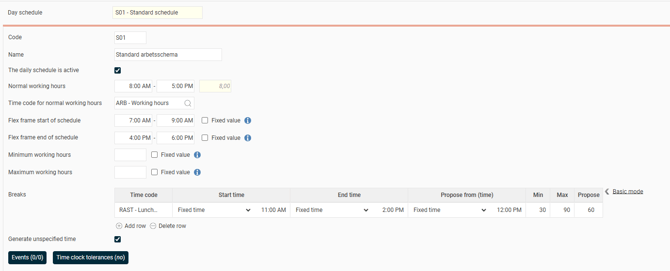
Day schedules have the following settings:
- Code
- Name
- The daily schedule is active
- Normal working hours
- Time code for normal working hours. This time code is used if you don’t specify a time code in the time report or when clocking time. If the time code for normal working hours is omitted from the day schedule, it is instead taken from the time group standard time code for working time.
- Flex window schedule start and Flex window end of schedule. Here you specify the permitted interval for flex time. Leave blank if flex time should not be used.
- Fixed value. Used if the flex frames should be locked to the specified hours.
Example:
A day schedule has working hours 8-17 and a flex window at schedule start 7-9. In the public schedule, I use the day schedule but change the start time to 8:30. Without ticking "Fixed value", the flex frame shifts with the working hours to 7:30-9:30. With "Fixed value" ticked, the flex frame remains 7-9 even though the working hours have changed.
- Fixed value. Used if the flex frames should be locked to the specified hours.
- Minimum working hours and Maximum working hours. Used for setting limits on how much time needs to be registered when using the day schedule. For example, it can be used for day schedules with large flex frames, where you want a minimum number of working hours to be registered.
- Fixed value. Used if the minimum/maximum working hours should be locked, and not adjusted if you change the working hours when using the day schedule.
- Breaks. Breaks can be entered at fixed times, a certain time after the schedule's start time, or a certain time after clock-in.
Example:
The image above shows a break rule. It states that breaks can be registered between 11 and 14. If you do not register a break, a 60-minute break will be allocated from 12 to 13 due to the Propose settings. If you, for example, register a 20-minute break, another 10 minutes will be allocated due to the Min setting (minimum number of minutes). If you register more than 60 minutes break, a discrepancy for discrepant break is generated (because of the Max setting).
- Generate unspecified time. The time report shows unspecified attendance/absence if you break the day schedule’s rules. This could be for time registered outside working hours and flex frames. It is marked as unspecified attendance, as a reminder that the time needs to be specified, for example, as overtime. If this setting is unticked, you can break the day schedule’s rules without the time report showing unspecified time.
- Events. Used to specify a formula that should apply when the day schedule is used, for example, that an extra allowance should be given.
- Time clock tolerances. Used for clocked time to be rounded off to schedule time, or to the flex frame if flex time is used. Read more about time clock tolerances.
Related articles
How do you create a public schedule?
How do you create a personal schedule?
Please note: This article is AI-translated. This means that linguistic errors or misunderstandings may occur.