
Publish statistics on the front page
In the statistics, there is an option to publish statistics in a panel on the front page. The panel displays all statistics that you have published on the front page, as well as statistics shared with you by other users and published on the front page.
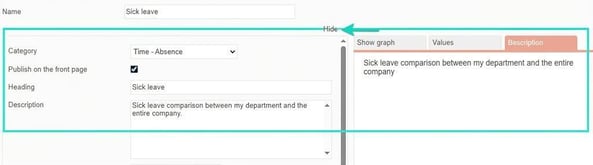
To publish the statistics on the front page, select the setting Publish on the front page. You can also specify a heading that is shown as the title in the chart and a description that is displayed under a separate folder.
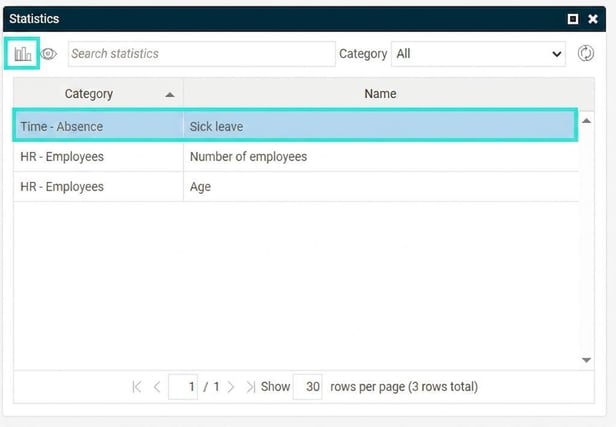
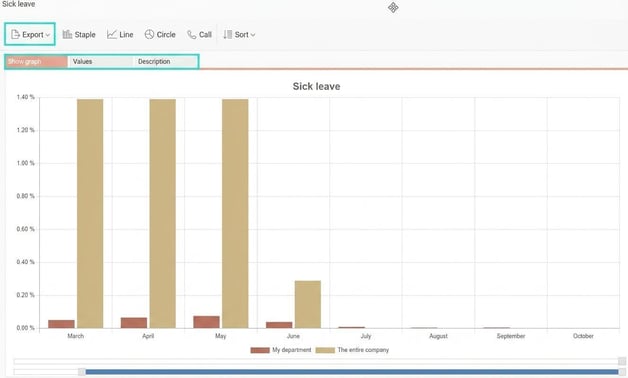
In the panel on the front page, double-click the row or select the statistic you want to view and click the 'table' button to display it. The statistic will then open in a popup. You can export the statistic as an image or to Excel, and you can see values and the description under their respective folders.
Share statistics
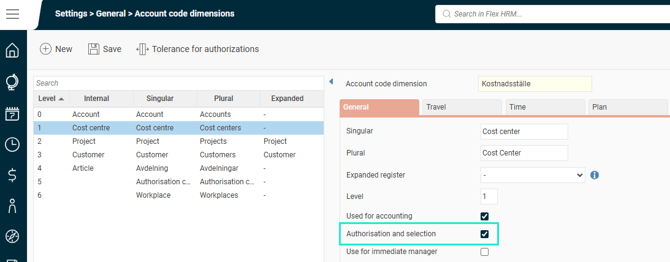
Sharing statistics allows you to control who you want to share the statistics with. You can choose to share with users/employees (employee is only shown for users with connected employment in the current company), roles and account codes. The account codes you share with are the employees’ home account codes and those account code dimensions with the setting Authorisation and selection ticked.
If the setting Give authorisation to all employees in the selection when allocation is ticked on a selection when you share statistics from the statistics, it means the person you share with will be able to see absence for all employees in that selection, regardless of their own authorisation.
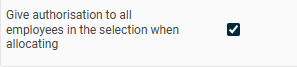
This can be useful if you want to share statistics with managers who are not authorised for all employees but would still like to compare the absence in their department with the total for the entire company.
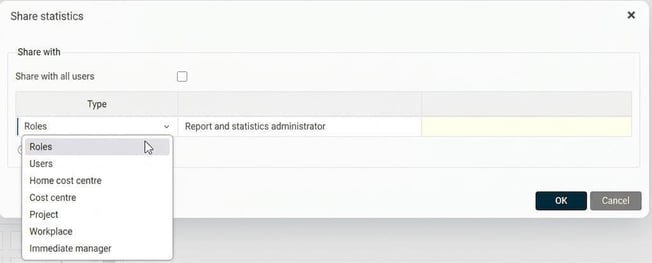
To open an already saved statistic, click in the statistics on Open. This will give you a list of saved statistics, both those you have saved yourself and those others have shared with you. If you open a statistic that someone else has shared with you, you cannot save (overwrite) it, but can only choose the option Save as, if you want to create a copy.
Statistics on the front page
Description
In the statistics panel on the front page, you can now see information about statistics. You can view the heading, description, as well as who created the statistics.
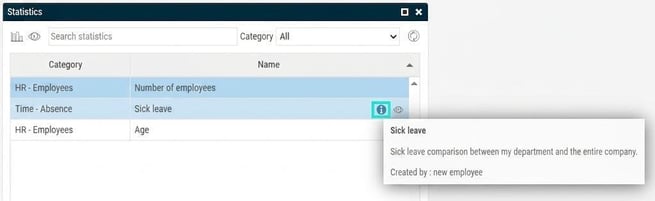
Show / Hide statistics
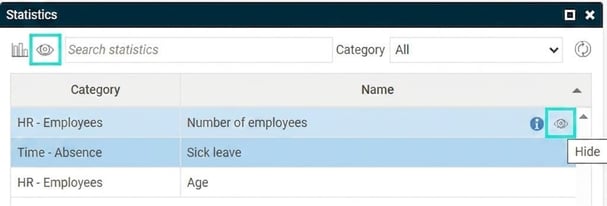
You can choose to hide a statistic that has been shared with you in the statistics panel on the front page. This can be useful if you have many statistics and some are not used as often. If needed, you can also display hidden statistics by clicking on the 'eye' in the upper menu bar of the panel. When you show hidden statistics, you can choose to change the status of the statistic so that it is no longer hidden.
Change chart type
You have the option to change the chart type when you have generated statistics on the front page in Flex HRM. You can select from the same chart types available in the statistics, i.e. Staple, Line, Circle, and Ring.
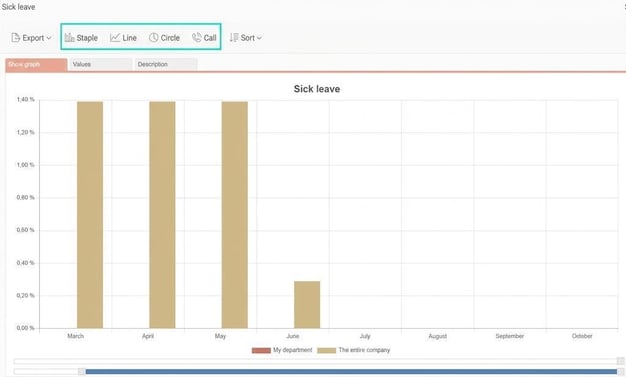
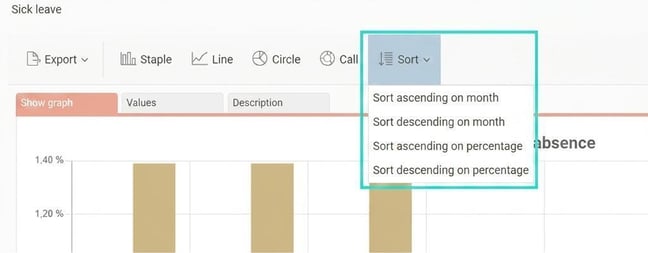
Sorting
You can change the sorting when viewing statistics from the front page. The options here are the same as in the statistics, and you can also select the interval for the results to be displayed using the sliders at the bottom of the window.
Related articles:

Statistics - What is the statistics?

Statistics: Statistic types – What do the different statistic types mean in the statistics?
Please note: This article is AI-translated. This means that linguistic errors or misunderstandings may occur.