
On the front page of Flex HRM, there is a panel where you can send messages to individual employees or to whole groups. You may have authorisation to both send and receive messages, or only receive them.
You manage messages on the front page of Flex HRM and in the view Messages in HRM Mobile.
How to manage authorisations for messages
You set up authorisations for messages per role under Users/Authorities > Roles, the Menus tab.
-
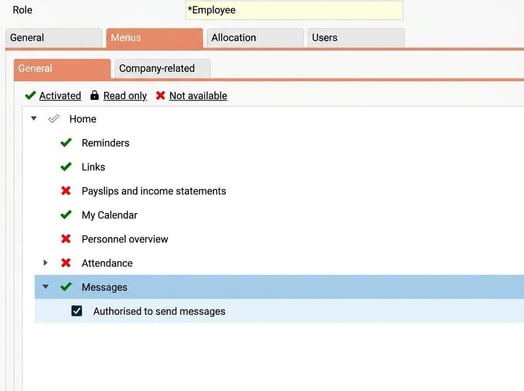
For users with the role to be able to see the message panel on the front page of Flex HRM and in the Messages view in HRM Mobile, you configure this under Menus, the nodes Home and HRM Mobile.
-
To grant the role authorisation to send messages themselves, tick this under the node for Messages on the front page.
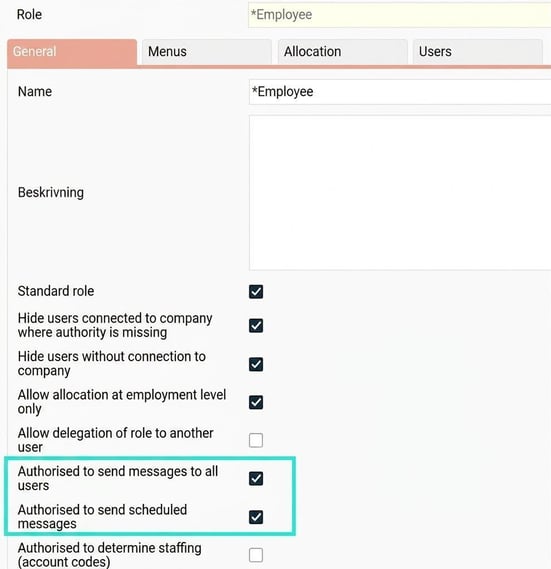
You can also choose whether the role should be authorised to send messages to all users and to send scheduled messages. You do this on the General tab.
-
Sending scheduled messages means the user can set a validity period for a message, for example, that it should only be displayed on a certain day.
-
Send to all users means the user can send the message to all users in the database, instead of being limited to the employees their role covers.
Example
If a user holds the role Employee and is authorised to send messages for their own employment, they can, in the Messages panel, only choose to send a message to themselves.
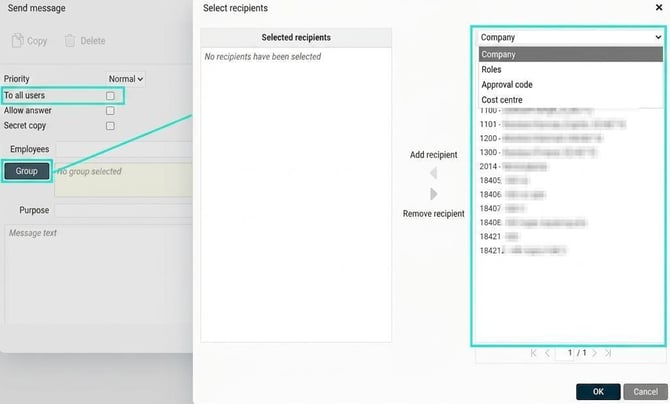
If you grant the role Employee authorisation to send messages to all users, the user can now choose to send the message to:
-
All
-
All in a certain company
-
All with a particular role
-
All with a particular home account code
Related articles
How do messages work in Flex HRM?
How do messages work in HRM Mobile?
Please note: This article is AI-translated. This means that linguistic errors or misunderstandings may occur.