
Note: This article applies to the module Flex HRM Analysis for payroll mapping which will reach End of Life on 30 June 2027.
Would you like to learn more about our new module Flex HRM Pay Equity Compass, you will find the relevant articles here.
Work evaluation

Work evaluation is a systematic method for evaluating the requirements and complexity of a job.
In HRM, we use a factor-based work evaluation. Based on the factor plan specified during Preparation you now go through all the factors to evaluate the works.
If you have chosen Specify ready-calculated points per work under Preparation, this step does not need to be performed and is therefore not visible in payroll mapping analysis.
It is important that you focus solely on the requirements and level of difficulty of the job when conducting your work evaluation, i.e., do not factor in who is performing the job or their performance or abilities.
Go through all the factors and respond for each work according to the option chosen in Preparation. Note that if you have already imported your points per work, i.e., selected the option
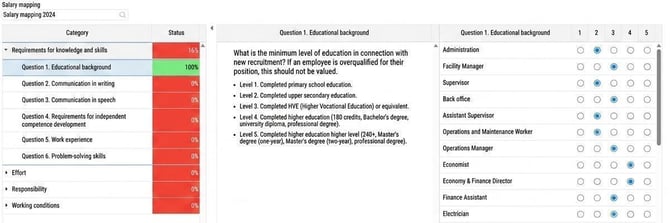
- Each factor field can have one response
- Each question is answered and may have several responses
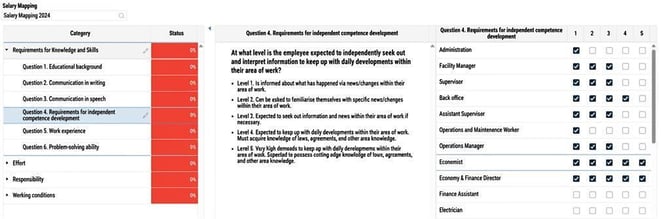
To the left in the view, in the first column Category, you can see all the factor groups (e.g., Requirements for knowledge and skills) and their factor fields (e.g., Question 1. Educational background).
You select the factor field you want to evaluate and fill in the response options for each work/group on the far right in the view.
In the middle column, you’ll see the heading and response options for the factor field you selected in the left column.
You can track each category’s Status to see your progress. All categories must be at 100% in status before you can proceed and submit this view.
When the work evaluation is complete, You submit . A calculation of the payroll mapping analysis will then be performed.
Calculate
Calculate is done for employees to appear in other views.
In order to calculate the payroll mapping analysis, you must have full authorisation to Preparation, Work evaluation or Employees, and both Preparation and Work evaluation must have status Submitted. You set the authorisation under roles.
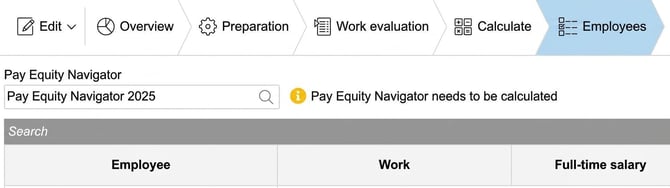
If you haven’t calculated, you will receive a warning, "payroll mapping analysis needs to be calculated", when you go to, for example, the Employees view to make it clearer why the employees are not visible in the chosen view.
Please note
When you calculate after starting your analysis in the Equivalent work and Lower salary higher valuation view (not Equal work), any comments and submissions will be deleted, as the grouping of works is recalculated. This is because the groups may change after the calculation.
💡 If you need to recalculate the Pay Equity Navigator after you have started the analyses in Equivalent work or Lower salary higher valuation. First take an export of all works. This gives you a list of all comments to refer back to if you need to enter them again in the analyses.
When the calculation is complete, you can view and go through the list of Employees.
Please note: This article is AI-translated. This means that linguistic errors or misunderstandings may occur.