
Note: This article applies to the module Flex HRM Analysis for payroll mapping which will reach End of Life on 30 June 2027.
Would you like to learn more about our new module Flex HRM Pay Equity Compass, you will find the relevant articles here.
Create new Payroll mapping analysis
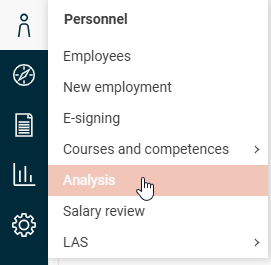
Go to Personnel > Analysis
Click on New and name your analysis.
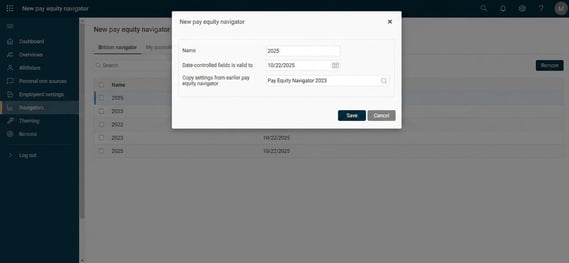
Decide up to which date the date-driven fields, such as wages and pay rises, should be valid at the very least. If you have a field that becomes valid after the selected date, it will not appear in the pay equity navigator.
Here you also choose if you want to copy preparations and work evaluation from previous pay equity navigators. In cases where you do not want the previous payroll mapping anlysis to be copied (read more about this under Preparations), you can select which earlier analysis you want to copy from. If you leave this field blank, no analysis will be copied and you will need to make all preparations (factor plan is available according to the standard template) and the work evaluation from scratch.
When you save as above, you will receive a notification that processing is underway and when the pay equity navigator has been created.
Which employees are included?
All employees with Employment type Employee (exclusive of CEO) are included in the pay equity navigator. People who have employment type External personnel in the menu Employment in HRM will not be included in the pay equity navigator.
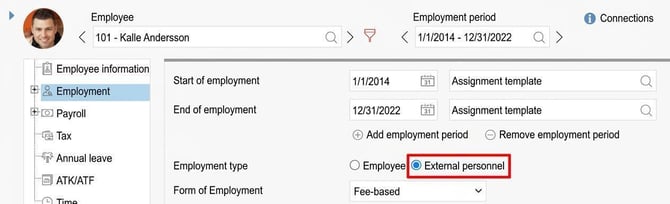
Please note that employment type External personnel also affects other functions in HRM, for example Payroll and certain statistics.
Who is CEO in the company is specified under the setting Company.
Preparations

Settings made under Preparations form the basis for the entire payroll mapping analysis and are also copied to the next pay equity navigator you create. However, each payroll mapping analysis settings can still be edited as long as this step is not submitted. This does not affect any other already created payroll mapping analysis, only the one you are currently working on.
Below are the settings you can configure in the step Preparations.
Grouping for work evaluation
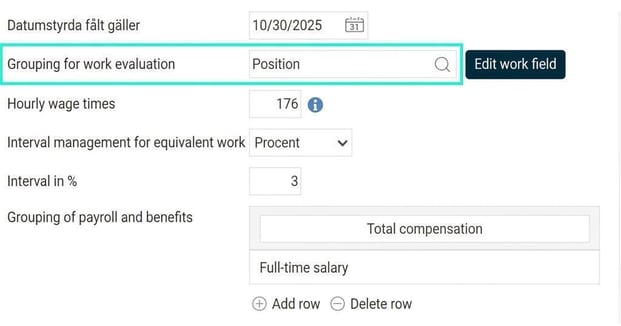
Here you select which works/groupings are to be evaluated. It is possible to choose from the position register and all account codes except for the account code used as Immediate manager. The purpose of grouping is to be able to compare and analyse employees who have equal works, that is, those with the same or very similar duties.
Choose between Position, Position (own grouping) or any account code.
Which grouping should I choose?
- Position - Use if every title in the position register should be a separate work. No positions are so similar in terms of duties that they can be combined.
- Position (own grouping) - Use when several titles (positions) can be grouped into the same work. For example, you have the positions Project Coordinator, Business Coordinator, and Training Coordinator—these all largely have the same duties and can therefore be collected under a single work in the pay equity navigator. You then create the works in the pay equity navigator under Edit field of work, in this example you call the work "Coordinator".
- Account code - Use when you need to group in another way. For example, you have the position Project Manager. All employees who are Project Managers have the same value in the position field in HRM. But within the Project Manager position, there are Project Managers whose duties differ widely and it is difficult to evaluate this work as one. You then create an account code and specify for each employee whether they are Senior Project Manager, Internal Project Manager, or Junior Project Manager. In this way, you can evaluate each individual group separately.
⚠️Warning! This option will be removed in the new version of Pay Equity Navigator released in Flex HRM in 2026. We therefore recommend that you review your workflow and your structure of positions well ahead of 2026.
Edit field of work is needed in cases where you have added something in the selected register/list or if you wish to remove any of the works. For example, if you use the position register as grouping, you may need to remove the position for CEO since it should not be included in the analysis. It is also used to create or edit groups/works when you have chosen Position (own grouping); see the section below.
Warning! If you wish to change the grouping above after you have started a pay equity navigator, you can do so but will receive a pop-up warning that all responses entered under the Work evaluation tab will be deleted.
Grouping for work evaluation – Position (own grouping)
This option is for those of you with many positions where some have similar requirements and can therefore be grouped together before beginning the work evaluation.

When you have selected the grouping Position (own grouping) as in the image above, click on Edit field of work to create your works/groups.
Bear in mind that you must create a work even for positions that are not to be grouped with any other position.
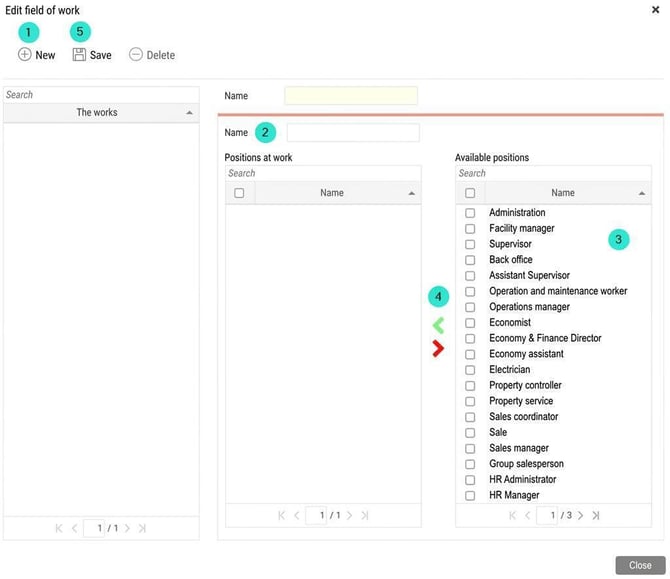
- Click on New
- Name the work with a name
- Select which position or positions are to be included in the work
- Click on the green arrow to add them to the Positions at work column. If you accidentally add a position to a work that should not be included, simply select it and click on the red arrow to make it available for another work instead.
- Save
- Start again at 1 to create all the works
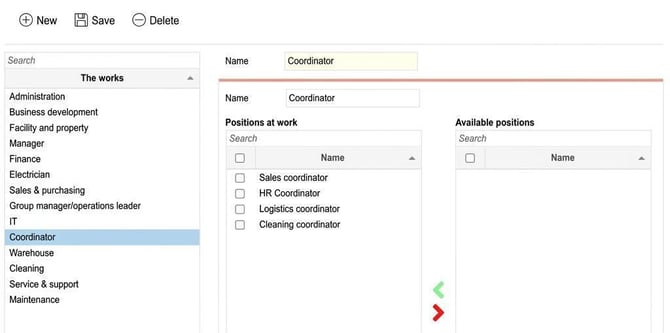
Here is an example of a work containing several positions
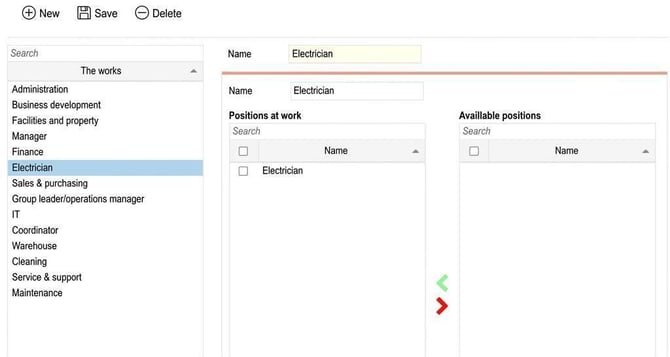
Here is an example of a work containing one position
Hourly wage
Hourly wage times the factor stated in this field corresponds to the conversion to full-time salary. This will be calculated the same for all hourly paid employees in the company so that it is possible to compare them on an equivalent basis.
Interval management for equivalent work
To identify which works are equivalent, the scores obtained per work in the work evaluation must be grouped. The purpose of grouping equivalent works is to enable comparison and analysis of the works where employees are considered to contribute an equal amount of value based on, for example, responsibility and experience, even if their duties are not the same.
Here you choose whether the grouping should be calculated using a percentage or an interval:
- For percentage you must enter a number between 2 and 10 .
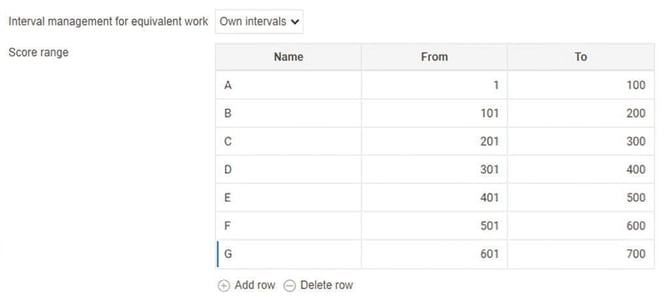
When you use percentage, the pay equity navigator refers to the maximum score in the factor plan. If the factor plan's maximum score is 640 and the setting is 3%, a work is considered equivalent to another work if it is within 19 points. - For own intervals you can determine yourself how large and how many intervals you want to use for your equivalent works by adding rows. Name each group and specify the score range that applies.
Grouping of payroll and benefits
To decide which fields/benefits apart from full-time salary should be compared in the payroll mapping analysis, you group them here. The purpose of this is to compare employees' payroll based on the allowance they actually receive rather than just the full-time salary. You can rename the heading, which will also be the name of this column shown in the payroll mapping analysis.
Add row to add the fields you want to include.
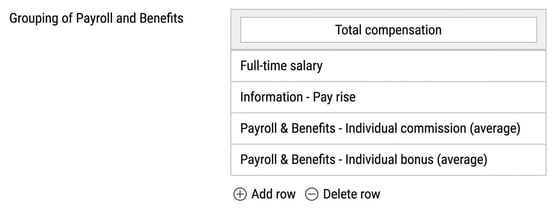
Please note! In order to be able to select from numeric additional fields, such as pay rise, you will first need to enable it in the settings .
Factor plan
Factor-based work evaluations have what is called a factor plan. The factor plan consists of questions for the factors that you will later base your work evaluation on; these are defined and tiered here.
The purpose of the setting is to specify how many points each factor should be valued at and the weighting that applies for each factor. Weighting balances the various factors against each other to determine their relative influence. A weighting of 1.00 means there is no weighting.
There are three types of factor plans in HRM to choose from.
- Each factor field can have one response
Only one response option per factor field/question is permitted and will give the stated points as well as any weighting. This is suitable where one alternative applies, for example as shown in the image below: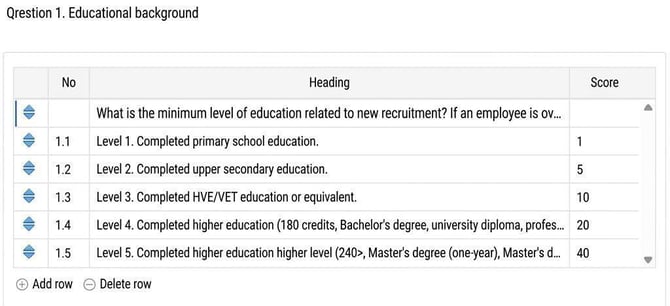
- Each factor field can have several responses
Each response option for a factor field/question/location can be answered and gives the stated points for all responses including any weighting.
⚠️Warning! This option will be removed in the new version of Pay Equity Navigator released in Flex HRM in 2026. We therefore recommend that you review your procedures and adjust your settings as soon as possible. - Specify ready-made points per work
Do you already have a completed work evaluation? You can enter the current points per work here either manually or through fileimport. This is useful if, for example, you are using an existing system for work evaluation such as BAS or BESTA. This option means no work evaluation will be done in HRM and therefore the Work Evaluation tab will not be available.
Reset to standard
You can return to the standard factor plan provided with the pay equity navigator in Flex HRM at any time by clicking on Reset to standard. This deletes any custom adjustments made to the factor plan. It only resets the factor plan for the current pay equity navigator.
This button always gives the latest version of the base template provided by Flex Applications AB.
Submit the view at the top right when all preparations are complete.
You are now ready to proceed to the Work Evaluation.
Please note: This article is AI-translated. This means that linguistic errors or misunderstandings may occur.