
Note: This article applies to the module Flex HRM Analysis for payroll mapping which will reach End of Life on 30 June 2027.
Would you like to learn more about our new module Flex HRM Pay Equity Compass, you will find the relevant articles here.
Pay Equity Navigator – Settings
Licence
Activate the licence for pay equity navigator for your company General > Company
Authorisations
Before you create a pay equity analysis, you need to set the correct authorisation for those who should have access to the pay equity navigator in HRM.
This is done under Users/Authorities > Roles.
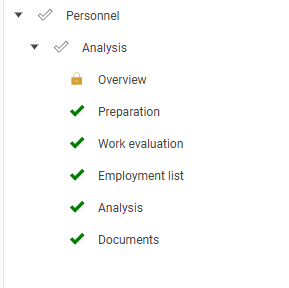
Please note that you will see all employees if you have authorisation for the payroll mapping analys views. The usual authorisation control where you only see the employees you otherwise have authorisation to does not apply.
The views Employment list and Analysis show details on all employees and their wages. In the view Document you may in some cases see employees' wages in the final report if, for example, there is only one employee on a specific work task. If this is not suitable, we recommend being restrictive with which roles you give authorisation to these views.
Additional fields in pay equity navigator
In the payroll mapping analysis you look at total wage, meaning you need to specify which other fields for wage and benefits besides full-time salary should be shown in the payroll mapping analysis.
The fields to be shown in the pay equity navigator must be activated under Settings > General > Employee register > additional fields
Find the relevant fields and tick Show in payroll mapping.
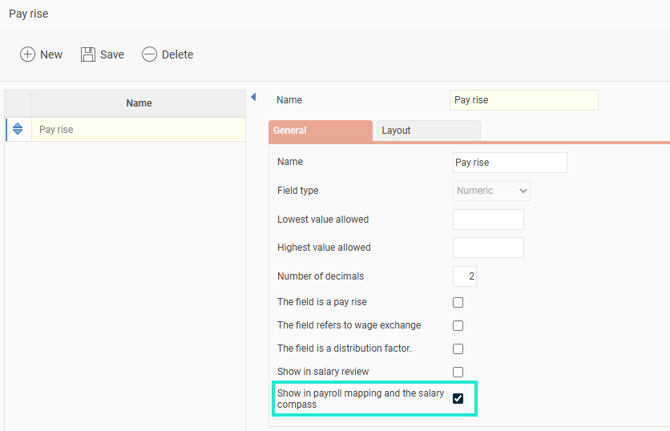
If you do not have all the fields in HRM, you might need to set up new ones. Read more here about own pages and additional fields in HRM.
Prepare assignments regarding employees
Check & complete as needed
- Wage information is available for all employees.
- Employment type is set correctly (external personnel are not included).
- Gender is defined for employees (retrieved from personal number or the gender field).
- To view period of employment, the start of employment is needed.
- To view mean age, the date of birth must be entered.
- Position (or work via account code) is specified in the register and for employees.
Complete other allowances as required
To be able to see total compensation for employees such as wage + pay rise, benefits, commission, bonus and so on, calculations of an average for pay rise, commission, bonus or similar per employee may be needed. Once the calculation is done it needs to be imported into HRM. For example, average commission over the last 12 months. Note that one or more additional fields must exist in HRM to import the value to.
- Create additional fields for commission/benefits or similar, see above regarding additional fields.
- Calculate an average per employee of the relevant allowances.
- Import/add the calculated value in HRM for the current employees.
Please note: This article is AI-translated. This means that linguistic errors or misunderstandings may occur.