
This product is under development. The content of the article will be updated as new changes are introduced.
Create basic settings
Settings made under Pay Equity Compass > Settings provide the foundation for your work evaluation and Pay Equity Navigator.
Click on Create.
Below are the settings you can configure after you have created the above.
How do I set intervals for equivalent works?
To see which works are equivalent, you will need to group the points determined in a work evaluation. The purpose of grouping equivalent works is to allow you to compare and analyse those works where employees contribute an equal amount of value. This is carried out based on responsibility and experience, even if their actual duties differ.
How interval management works
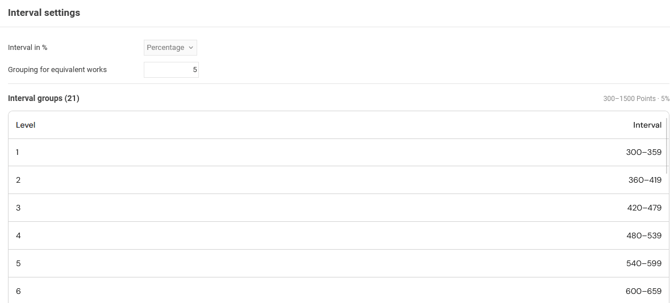
Within interval management, we define how wide the interval for equivalent works should be. In Flex HRM our default setting is five percent.
Use percentage for interval
The interval is relative to the maximum score available in the factor plan.
Grouping for equivalent works can be set between 2-10%.
You will instantly see how the intervals look for the different levels. In the image below, you can see how it appears when we use our standard of five percent.
Grouping of Salary supplements, allowances and benefits
To determine which allowances/benefits, in addition to full-time salary, should be compared within the Pay Equity Navigator, you group them here. The purpose is to compare employees' wages based on the allowance they actually receive, and not just the full-time salary.
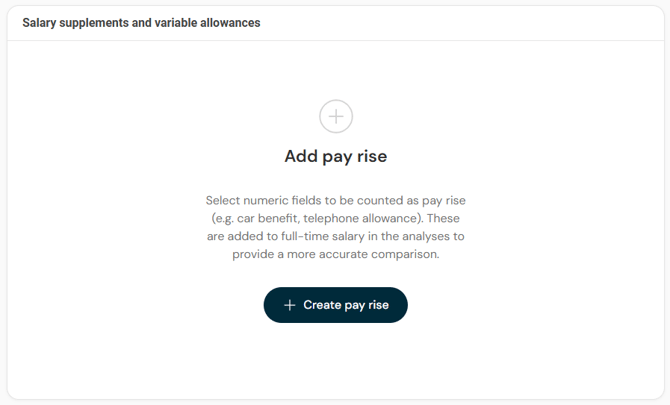
Click on Create pay rise
Specify what should be included in total compensation by clicking on Add field and select the allowances to be included.
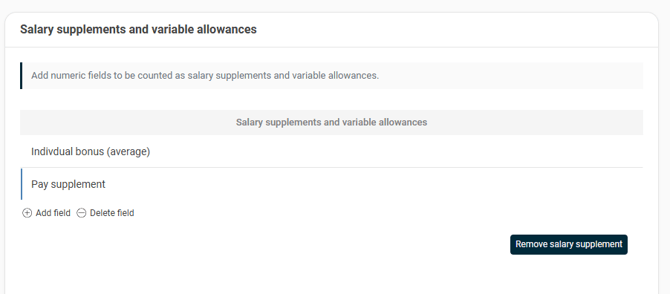
Please note! To be able to select numerical additional fields, such as pay rises, you need to configure this in the preparatorysettings. If you cannot find any available fields in the list ⬆️ you need to go through these settings first.
Once you have adjusted your settings, it is time to Save.
How do I use the factor plan for valuation in Flex HRM?
In Flex HRM there is a ready-made factor plan that helps you evaluate different factors using questions, scores and weighting in the work evaluation.
What is a factor plan?
A factor plan is used to assess different parts of a business or duty. It includes ready-made questions where each response gives a certain number of points.
To determine how important a specific factor is compared to others, we use weighting.
-
A weighting of 1.00 means no special weighting is applied.
-
By changing the value, you decide the relative impact of the factor on the final result.
You can use the factor plan provided by Flex HRM as it is.
Below we describe how you can adapt the plan to your organisation if necessary.
How to edit questions and scores in the factor plan
If you need to adjust the contents of the factor plan, you can easily make changes.
-
Click on the pen to edit the details.
-
Here you can change:
-
The actual questions.
-
Which responses are possible to choose.
-
How many points each response should give.
-
The name of a specific question.
-
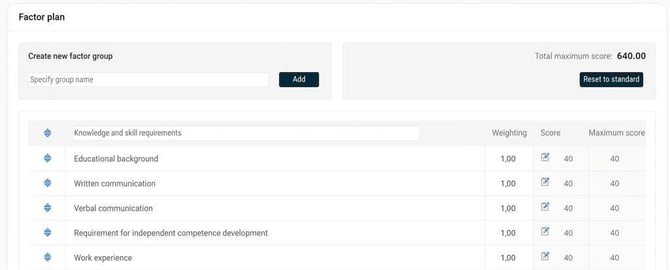
Add or remove factors
You have the option to expand or simplify your factor plan so it better suits your business. For example, you can:
-
Add entirely new factor groups.
-
Add or remove individual factor fields.
Reset to standard
You can at any time return to the standard factor plan included with Pay Equity Compass in Flex HRM by clicking on Reset to standard. This will delete any custom adjustments that have been made to the factor plan.
Changed standard factor plan as of version 2026.90
Please note that the standard plan has changed. Originally, a standard plan with 16 factor fields, a 3% interval, and a maximum score of 640 was used. Resetting will now apply the new standard plan, which features 15 factor fields, a standard interval of 5%, and a maximum score of 1500.
If you have used the factor plan in a language other than Swedish, it will revert to Swedish upon reset. Multi-language system support is currently under development. You can, however, translate it manually.
If you have made changes to the factor plan, click on Save.
Related articles
Get started with Pay Equity Compass in Flex HRM – Checklist
Please note: This article is AI-translated. This means that linguistic errors or misunderstandings may occur.