
Grant a user role authorisation to a dashboard
For a user to be able to see a dashboard on the front page in Flex HRM, you first need to grant the relevant user role authorisation.
Enable a dashboard for a role
-
Go to Administration > Users > Authorisations > Roles.
-
Select the role in question and go to the node Home.
-
Specify which dashboards the role should have access to.
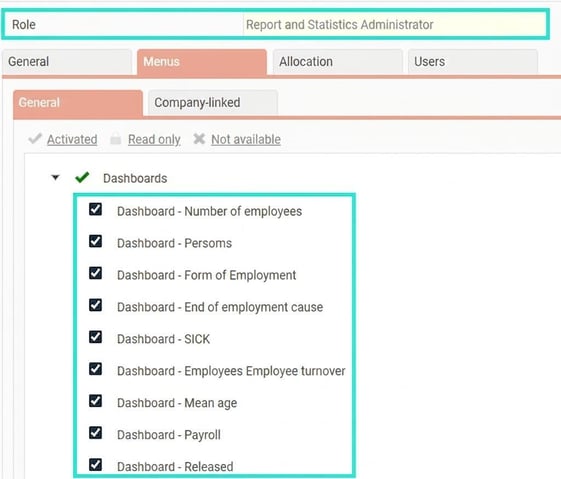
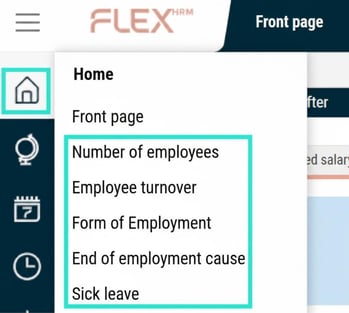
Once authorisation has been assigned, the user will see the dashboard as a new tab on the front page.
Bear in mind that, per Dashboard in Flex HRM, you can configure which employees a user, based on their role, should be authorised to access. Read more about this in the article "Dashboard - What is a Dashboard?".
See detailed information about employees
In a dashboard, you can click on the graphs to view more detailed information about the employees behind a particular value. For example, if you click on a staple showing ten employees with a specific end of employment cause, you will see who these ten people are.
For a user to be able to click in the graphs and see detailed information, you need to activate a specific authorisation. Go to Users > Authorisations > Roles and tick the setting Authorised to see details about employees for the relevant role.

Note that the function to see detailed information by clicking in the graphs is only available in HRM, not in HRM Mobile.
Related articles:

Dashboard - What is a Dashboard?
Dashboard - Meter/Value - How do I measure and visualise my values?
Panels in Dashboard - How do the shared settings for panels in Dashboard work?
Please note: This article is AI-translated. This means that linguistic errors or misunderstandings may occur.