
Content
Assignments - Panel on the front page
Reminders for assignments
Assignments - Panel on the front page
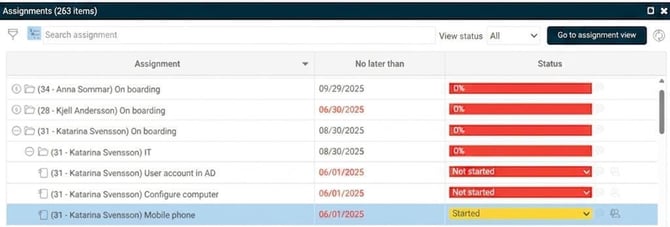
In HRM, you can use assignments with tasks that need to be managed. For example, these could be tasks to be carried out during on boarding or off boarding of employees. In the assignments panel on the front page, you can see the tasks you are responsible for. Here, as you complete your tasks, you can change their status and, if needed, add comments by clicking the speech bubble to the right of the status.
Tasks that you are assigned as responsible are handled on the front page by changing the status.
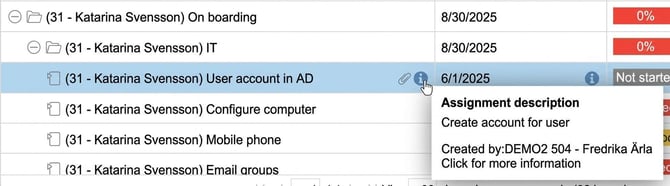
More information about the task is seen under the info icon.
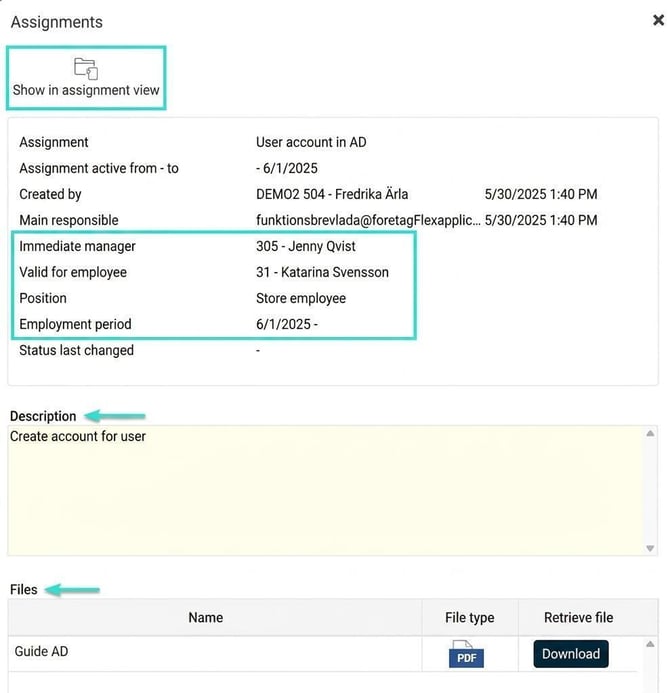
Click on the i and you will get a window with more information about the task, as well as the option to download any enclosed files.
If you have authorisation for the assignment view, you can also go directly to the relevant task in the assignment view using the link at the top of the window.
By clicking the speech bubble, you can write and read comments regarding the assignment.

You can decide how you want to view the panel by enlarging the box

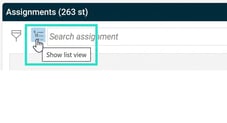
Or configure whether you want to see each task as its own row (list view) or if you want to use the tree view to see the tasks grouped by assignment (employee).
It is also possible to filter by status as well as, for example, date on the icon for filter.

When a task is finished, you change its status to Done.

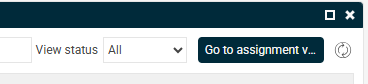
If you have authorisation to the extended assignment view, you can see the whole assignment for the employees you are responsible for, and, if authorised, adjust, for example, the responsible person or the no later than date for a task. To go to the extended view, click Go to assignment view.
Status for assignments
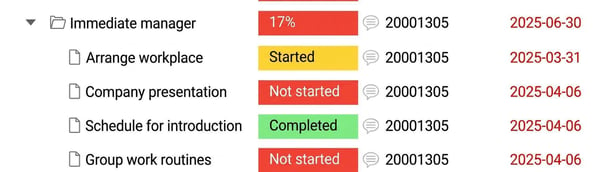
In the status field, a task can have one of the following statuses:
-
Not started (default for new tasks)
-
Started
-
Done
-
No actions
For main themes and sub-themes, instead, a percentage is shown, indicating how many of the underlying tasks are marked as Done or No actions.
Reminders for Assignments
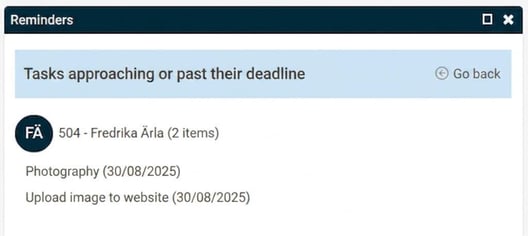
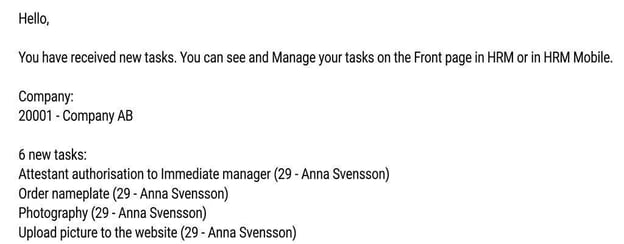
Reminders that tasks in assignments are approaching or have passed their deadline appear on the front page; in your organisation, a reminder may also be sent by email and as a notification in HRM Mobile. On the front page, you can see which employees the reminder concerns and, in parentheses, how many tasks are involved. If you click the task's name the Assignments view will open.
Example reminder by email
Related articles
How do I create new tasks and assignments in HRM?
How does HRM Employee handle the on boarding of employees?
How does HRM Employee handle the off boarding of employees?
Please note: This article is AI-translated. This means that linguistic errors or misunderstandings may occur.