
Contents
Add new employee
Generate contract of employment
E-signing
Add new employment period
Notification of new employment
Assignments - Digital checklist during onboarding
On boarding - Add new employee or new employment period
How to register a new employee using the employment process
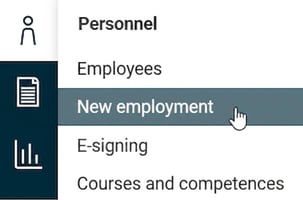
Go to Personnel > New employment.
Click on New employee and select the appropriate employment template for the current member of staff.

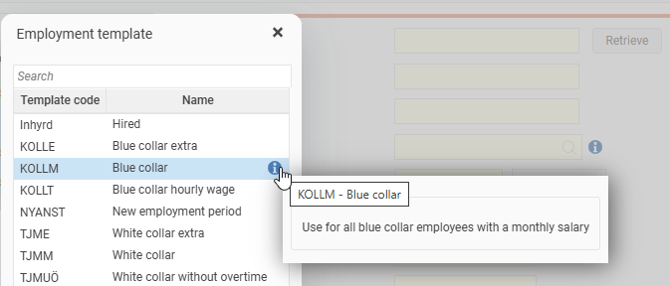
The employment template in HRM helps streamline the employment flow with default values and by automatically creating a user account for the employee.
Fill in all information about the employee. Press save to save the details.
The employee will now appear in the list view Employees > New employment. 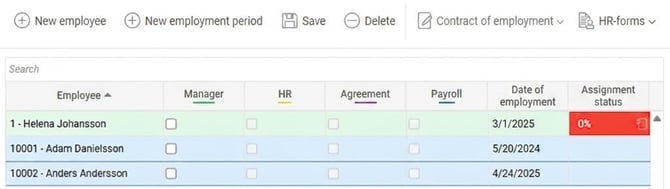
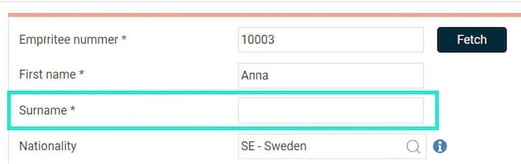
If you are unable to fill in all the information immediately, you can save and return at a later point. * shows what must be specified before you can save for the first time.
Once you have entered all information, you must approve your new employment.
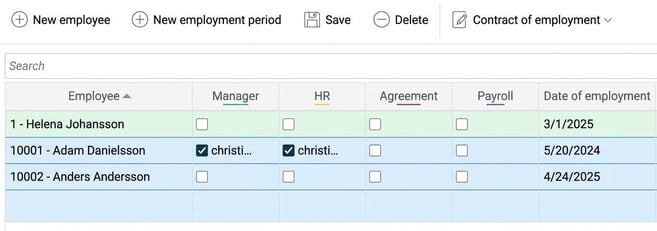
You approve by ticking current audit step
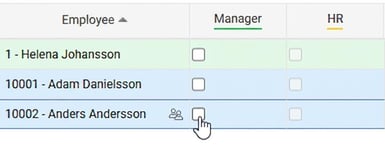
If you have not filled in all the fields required for your audit step, you will receive an error message. 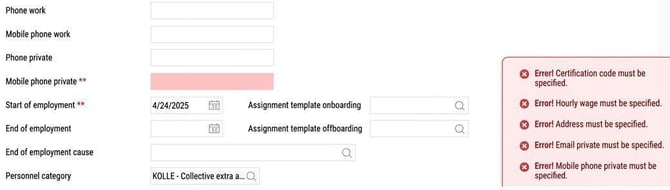
Once you have filled in the mandatory fields (**) you can proceed with the process and audit as above, after which the next audit level will take effect.
If at least one audit level is activated in the company, the employee register will show that the employee is not activated and that further audit is required.
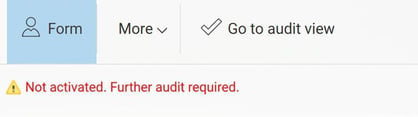
This means the employee will not be visible anywhere else in the system except in the employee register. Thus, the employee cannot register a time report or travel expense claim.
When all audit levels have been completed, the employee or the new employment period will become available in the rest of the system, and the employee can then, for example, start time reporting and submitting travel expense claims. This also means that the employee will no longer be visible in the new employment view.
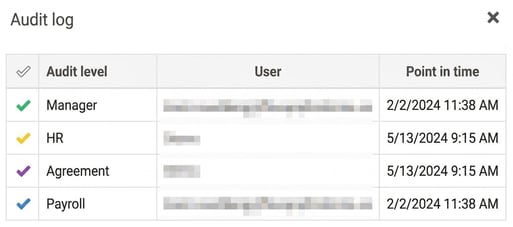
In the employee register, you can see who executed the audit as well as the time point for this via More – Audit log
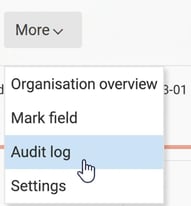
Generate a contract of employment
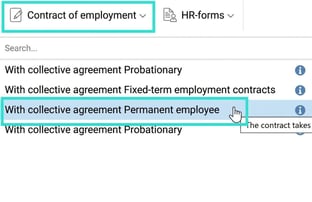
If you are authorised to retrieve a contract of employment, the icon Contract of employment is visible.
Please note that there may be a specific audit step at which it is possible to generate a contract of employment. If it is greyed out, one or more audit steps must be approved before the contract can be retrieved in the new employment view. In the example below, this is at the step Agreement where the contract of employment can be retrieved.
Select the correct c ontract of employment, fill in the information in the box and download or send the contract for e-signing.
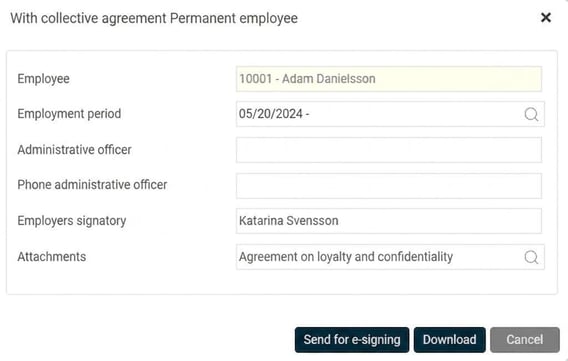
Read about how to send the document for E-signing
Create new employment period
When an employee who has already been or is currently employed at the company receives a new employment/new employment terms, a new employment period should be added for the employee. This is done via Personnel > New employment.
Select New employment period

Search for the employee in the list Employee
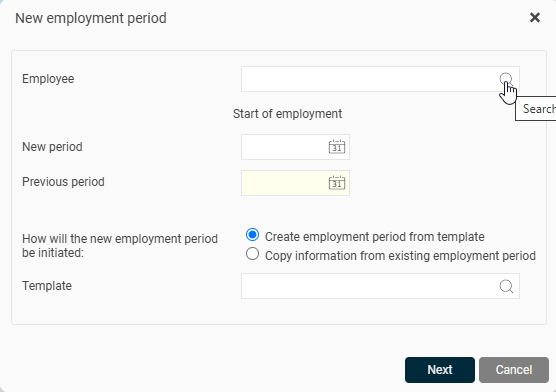
Good to know! Can't find the employee in the list? Ask your system administrator for help, as they will need to add the new period for the employee for you to be authorised to access the employee.
- Select the date for the new period
- Select employment template or copy information from an existing employment period.
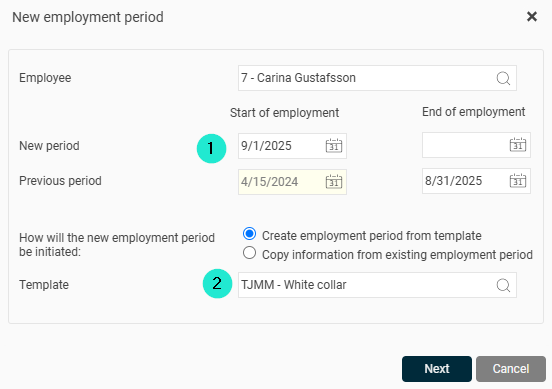
Note that when Copy information from existing employment period is used, the system will use the employment template of the earlier period and follow the rules that apply to that feed.
Once the new employment period has been initiated, it will follow the same feed as for a new employment, and you fill in the required information, e.g. add new salary and other information, save and then audit the employee. To retrieve agreements, see section Generate a contract of employment.
Good to know!
Fields such as new monthly salary/hourly wage, contractual working hours, additional fields and account code set for the new period are not directly linked to an employment period in HRM’s employee register. This means these fields are updated directly in the employee register when you save the new period, with the from date you have set on the new employment period. However, if an employment period is later removed, these date-controlled fields will not be automatically removed. They must then be removed manually in the employee register. Ask your system administrator for assistance if you need help. Want more info? Read more about removing employment period
Reminders for auditing of employment periods
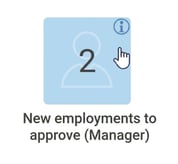
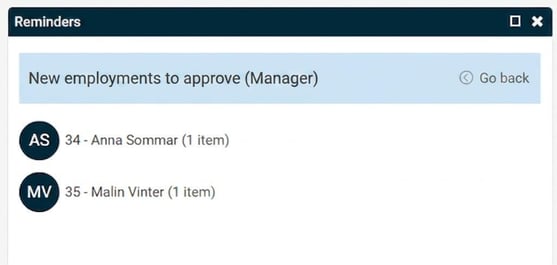
You will see a notification if there are employees left to audit on the front page in HRM. The reminder will remain as long as there is any employee left to audit.
On the front page you can also see which employees the reminder refers to, and in parentheses how many employment periods are affected. If you click the employee's name the new employment view will open, where you will get an overview of all remaining employees to audit.
Assignments - A digital checklist during onboarding
When an assignment template for onboarding is used in the employment feed, tasks for responsible persons are triggered, detailing what must be done when an employee starts.
An assignment template for onboarding is usually linked to an employment period via New employment. This can happen automatically from the employment template or be done manually by a user.


In the task panel on the front page you can see the tasks you are responsible for. As you complete your tasks, you can change their status and, if necessary, add comments by clicking the speech bubble to the right of the status.
How do I manage tasks during onboarding?
Related articles
How do I manage tasks and assignments in HRM?
How do I enter staff data and employment information in HRM Employee?
How do I manually register a new employee and user?
How does HRM Employee handle off boarding of employees?
How do I remove an employee?
How do I remove an employment period?
How do I manage employees with protected personal registration?
Please note: This article is AI-translated. This means that linguistic errors or misunderstandings may occur.