
HRM Employee

Under Personnel In HRM, you will find the functions for Employee. Here you will find, for example, the employee register with employee information and other functions in Employee.
Employee register
You will find the employee register under Personnel > Employees.
Employee information and employment details
Form
You can view details about employees by clicking the different icons on the left side of the employee in the employee register.
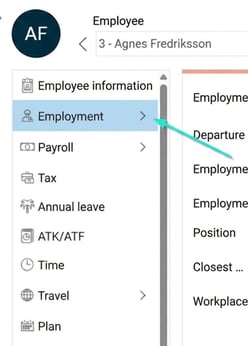
The icons you can see may differ depending on which modules you have and your level of authorisation.
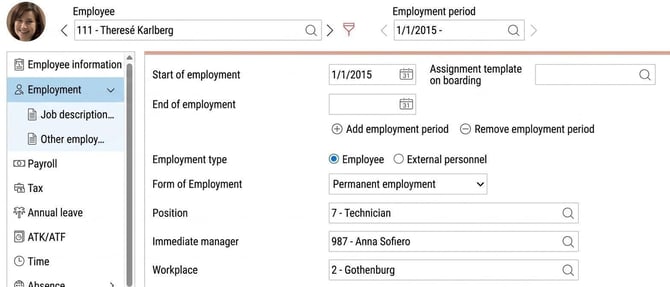
To navigate, click an icon. If there is a + you can click it to view underlying tabs.
Good to know! If you have full authorisation you can edit a field, but if you have read only you can view but not add or change a value.
When you change or add a new value, remember to Save.
How do the different fields in the employee register work?
Nationality
Here you choose the country format for registering the National ID number. By default, the company’s home country is proposed. If no home country has been set for the company, Sweden is proposed.
National ID number
The employee’s social security number (12 digits), or coordination number (10 digits).
The program can validate the National ID number if you have chosen Sweden, Finland, Norway or Denmark as nationality. If the number cannot be validated, it cannot be saved in Flex HRM.
If the National ID number is validated correctly, the program will also provide gender and
date of birth. If the National ID number cannot be validated, you can enter these
details manually. Gender and date of birth are used, for example, for Pay Equity Navigator.
To allow for managing parallel employments, it is possible to register a National ID number that is already in use for an employee number in the system. However, you will receive a warning when entering an existing National ID number to prevent the same employee from being registered with multiple employment numbers by mistake.
Change/select employee
To navigate between different employees, search for the employee by entering their name in the Employee box, click the magnifying glass or jump to the next employee via the arrows.

Change/select employment period
To move between different employment periods for the same employee, click the magnifying glass or jump to the next using the arrows under Employment period.

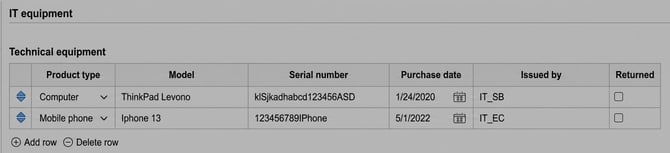
Own field of type table
Certain fields in HRM are set up as tables. In a table, you can have several parallel rows.
Add values to the table by clicking +Add row
Own field of type field group with date history
Some fields in HRM are built with date history. In those fields, information is only visible if there is a valid value for the employee. You can view earlier or upcoming values in the field if you click the pencil. The pencil is also used to edit the field.

Add row to enter a new value
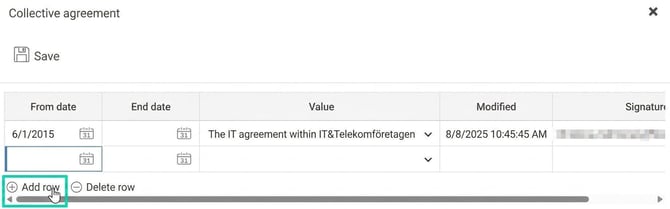

Save changes via the icon Save.
List
Using List, you can see employees in a list view.
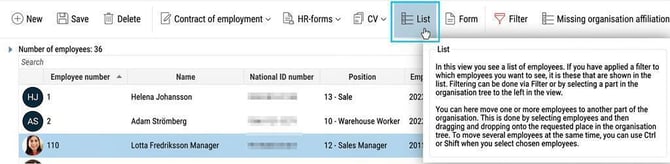
Note that access to the list view is controlled by roles.
Filter
Through filter you can select which employees you want to view. Red icon means a filter is selected. Click the icon to view more information and set any additional filters. Here you can choose, for example, whether to view only current and future employees, or to see all employees, including those who have ended employment.

Click Apply to use your selected filter and Clear filter to remove the selected filter.
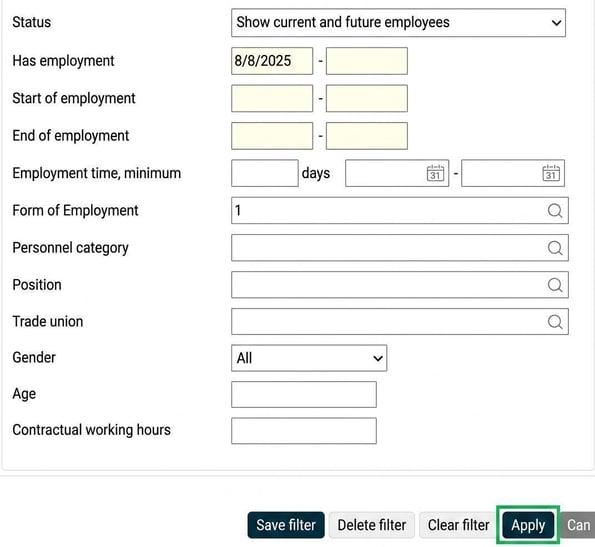
A selected filter remains until you change the filter or clear it. If you want to save a filter for later use, enter a name at the top and click Save filter.
More
Under the icon More you will find additional functions, such as the option to display the organisation overview, mark fields, and view the audit log.
Mark field is used for easily seeing which data is linked to a specific employment period. These fields are marked with a light blue colour, and you can see that they can be changed as you scroll between different employment periods.
Related articles
How do I manually register a new employee and user?
How does HRM Employee handle on boarding of employees?
How does HRM Employee handle off boarding of employees?
Please note: This article is AI-translated. This means that linguistic errors or misunderstandings may occur.