
Available fields and selection
Which absences are shown in the report?
Account codes in absence data source
How does the selection and display of number of hours of waiting period work?
Take recurrence into account
With the data source Absence you can generate various details to provide a clear overview. For example, you can:
-
See how many absence periods an employee has had during the last year.
-
Find out the part of sickness absence that is short-term absence.
You can combine the data source Absence with the data source Employees. This allows you to create more detailed reports and make selections based on, for example, department, gender or age.
The data source can be generated at group level for those using the module Concern management.
Available fields and selection
For the data source Absence the following fields are available for reports and selection:
-
Number of days total in the absence period (work days)
-
Number of days total in the absence period (calendar days)
-
Number of absence periods
-
Number of hours of absence
-
Number of hours of absence (exclusive waiting period)
-
Number of hours of waiting period
-
Children - Identification number
-
Children - Name
-
Day in absence period (work days)
-
Day in absence period (calendar days)
-
Date
-
Absence part time
-
Part-time absence percentage
-
Start time
-
Start time (incl. midnight transition)
-
Reason for absence
-
Absence period in the date selection
-
Type of absence
-
First date in the absence period
-
Home - Account code - Code (at the time of absence)
-
Home - Account code - Name (at the time of absence)
-
Account code - Code
-
Account code - Name
-
Message
-
Extent
-
Schedule time (hours)
-
Schedule time full time (hours)
-
Last date in the period of absence
-
End time
-
End time (incl. midnight transition)
- Total schedule time in the period (hours)
Which absences are shown in the report?
The report fetches absence from the absence manager in the time report. Absence time entries entered only directly in the time report are therefore not included.
If there are several absence entries for the same point in time, the report fetches them based on the same logic as the time report. You can read more about this in this article: Which absence applies when there are overlapping absence entries?
Account codes in absence data source
Absence account code
It is possible to require account codes (cost centre, project, etc.) for absences. This is used if you want the account codes from the application for absence to be entered into the time report, or if you want the application for absence to be audited by the person authorised to audit the account code instead of the employee's manager.
Read more about absence account codes here: ⚙️Can partial authentication authorisation be used for auditing absences?
If you use account codes on absence, you can access these account codes in the report generator.
Home account code
The employee's home account codes can be found in the employee register, tab Account code.
Reports and statistics use the home account code that applies to the date the report/statistics are generated.
The Absence data source is an exception. Here you can select or display the home account code that applied on the date the absence occurred.
Example:
Employee 1 belonged to cost centre 8 in January and cost centre 7 in February.
The report shows home cost centre based on the date, NOT what the employee has today.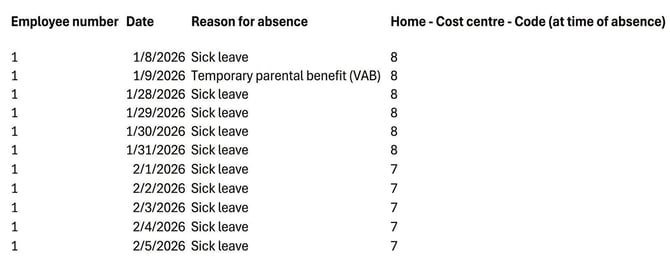
How does the selection and display of number of hours of waiting period work?
The waiting period is calculated as 20% of actual work measurement/week.
If you choose to include the waiting period in the report, it is counted regardless of reason for absence.
In the employee register there is a setting for No qualifying period. This does not affect the result in the report.
Take recurrence into account
An important function is the possibility to take into account recurrence.
If you activate this setting in the selection for the report, the system will treat multiple absence periods as a single period if an employee falls ill again within five days. This is practical to produce correct statistics that match how the waiting period is calculated.
Related
What is the Report generator?
Can partial authentication authorisation be used for auditing absences?
Which absence applies when there are overlapping absence entries?
Please note: This article is AI-translated. This means that linguistic errors or misunderstandings may occur.