
This guide helps those who are swapping to Flex HRM as their HR/payroll system and have employees where LAS days have been calculated based on work days (not calendar days).
If you are going to import historical data for employment periods but all types of employment are calculated on calendar days, there is no need to delve deeper into this article. You may go directly to the guide for importing employment periods.
Read more about imports and import templates
Read more about importing employment periods.
Available options for handling work days
LAS handling on worked days via pay code in HRM Payroll
LAS handling using calendar days
Good to know
- It is on the Type of Employment that the calculation for LAS is set. Possible options are Calendar days, Work days, or Exceptions.
- The calculation rule for where Work days should be calculated – HRM Payroll or HRM Time – is set on the Personnel category.
- Personnel category and Form of Employment are linked to the employment period in HRM.
Option 1 – LAS handling on worked days via pay code in HRM Payroll
This option suits you if you meet the following criteria
- You have HRM Payroll
- You have employees whose employment periods should be counted on work days – often some type of temporary employment.
- You wish to transfer historical data for these employment periods from another system to Flex HRM in order to get accurate LAS lists.
- The employment periods in the previous system are NOT the same as the actual work days. But information about actual worked days exists.
This option means that historical data with exact employment days is imported into HRM Payroll.
Step 1
Check settings in Flex HRM
- Type of Employment calculates employment days with type of calculation = Work days.
- Personnel category – Here you specify that Work days should be calculated in Payroll processing.
Step 2
Check the import file so that the historical employment periods include the correct assignment of Form of Employment and Personnel category as above. Read more about importing employment periods for important points to keep in mind and things to check before importing.
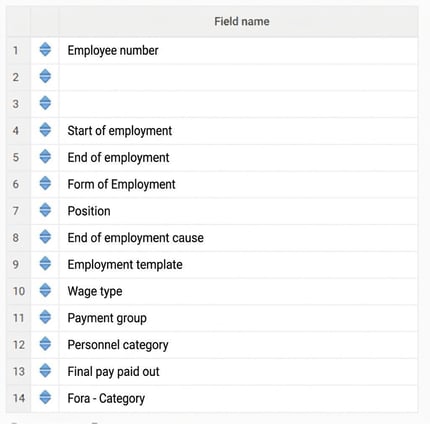
The import type in Flex HRM is called Employees/users and needs to include the following fields:
:
Step 3
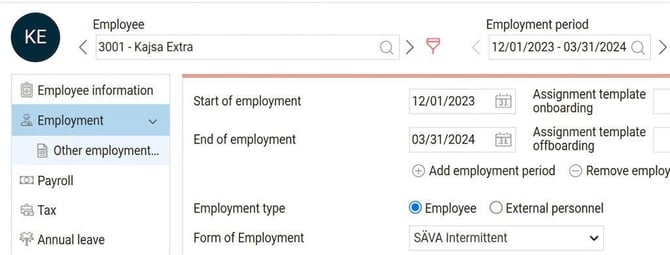
In the Employee register, import the file with employment periods. An employment period is imported with from - to date covering the entire period in which the employee had these work days/shorter employments.
Example Employee register
There needs to be a period that covers the range of employment days which you then import details for in the payroll process.
In the example: employment period 2023-12-01 - 2024-03-31.
Step 4
Check the import file to Payroll processing in HRM Payroll so it contains correct information about exact work days.
Step 5
In Payroll processing in HRM Payroll, historical data is imported for the specific dates the employee worked. Normally to pay code 5.
The import type in HRM is Payroll transactions – History.
Here are the fields that must be included in the import:
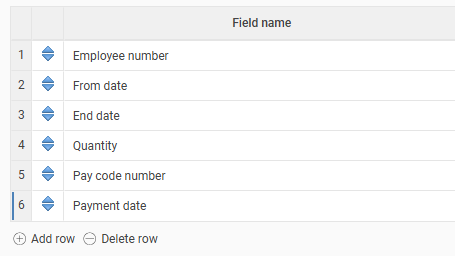
Example in Payroll processing
On pay code 5, you import the dates and number of days that the employee has worked for each occasion. In the example, the following have been imported:
2024-02-01 - 2024-02-29 12 days 2023-12-05 - 2023-12-05 1 day 2023-12-11 - 2023-12-12 2 days 2023-12-13 - 2023-12-13 1 day 2023-12-28 - 2023-12-28 1 day 2024-03-01 - 2024-03-02 2 days
Example in the LAS list: Right to permanent employment
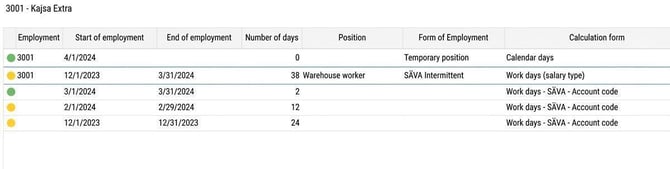
In the LAS list, you can see that the employee has 38 work days counted for the period. In the example, the Form of Employment is SÄVA Intermittent, which means it has counted intermediate days for periods with 3 or more occasions, as you can see for the days in December 2024.
2024-03-01 -2024-03-31 2 days 2024-02-01 - 2024-02-29 12 days 2023-12-01 - 2023-12-31 24 days


Please note! if future worked days in HRM are to be calculated in HRM Time (not Payroll), then employment periods for historical data need a Personnel category as above, and employment periods for upcoming work days need a different Personnel category. The setting for Calculation rules for work days must be set as two different values.
If you create a personnel category only for managing historical days, you can for example call it XLAS – Historical employment days LAS, to make it clear it's only for historical data.
Read more about settings for personnel categories here.
Option 2 – LAS handling using calendar days
This option suits you if you meet the following criteria
- You have employees whose employment periods should be counted on work days – often some type of temporary employment.
- You wish to transfer historical data for these employment periods from another system to Flex HRM in order to get accurate LAS lists.
- The employment periods in the previous system ARE the same as the actual work days.
This option means that historical employment days are imported as employment periods in Flex HRM's employee register.
Step 1
Check settings in Flex HRM
- Type of Employment calculates employment days with type of calculation = Calendar days.
- Personnel category
Step 2
Check the import file so that the historical employment periods include the correct assignment of Form of Employment and Personnel category as above. Also make sure you have correct employment periods in your import file.
Confirm you have an import template for employment that matches your import file.
In Employee register, each employment occasion is imported as an employment period with from - to for each short-term employment.
Example Employee register
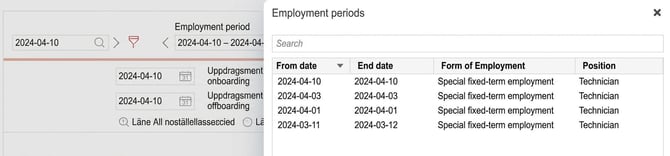
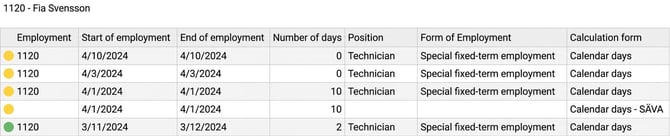
In the example below, you can see that all short employment periods have been imported as separate employment periods for the unique days the employee has worked.
Example in the LAS list: Right to permanent employment
In the LAS list, you can see that the employee has 12 work days counted for the period. In the example, the Form of Employment is Special fixed-term employment, which means it has counted intermediate days for periods with 3 or more occasions, as you can see for the days in April 2024.
Please note! if future worked days in HRM are to be calculated as work days in HRM Time, employment periods for historical data need a Form of Employment with calculation as above, and employment periods for upcoming work days need another Form of Employment with calculation based on work days. Then the setting must be two different values. Also remember that the personnel category for upcoming employment periods needs to have the setting for Calculation rules for work days set to HRM Time.
Read more about settings for forms of employment and personnel categories here.
Please note: This article is AI-translated. This means that linguistic errors or misunderstandings may occur.