
In Flex HRM you will find three different LAS lists: Priority list in case of termination, Right to permanent employment, and Preferential right to re-employment.
All lists in HRM are based on the Swedish Employment Protection Act (LAS) – Law (1982:80) which regulates the relationship between employees and employers, with the aim of protecting employees. There are also negotiated exceptions regulated in collective agreements, so it is important that you check your specific collective agreement to see if anything deviates from LAS.
Here we describe the settings and authorisations required to use the LAS views in HRM, as well as how the calculation of employment days works in detail.
Contents of this article
Checklist for settings
Employment days
Authorisations
Licence & Home country
Form of Employment
Extended opportunity management for SÄVA
Personnel category
End of employment causes
LAS tab per employee
Checklist for settings
✅Authorisations
✅Types of employment
✅Personnel categories
✅End of employment causesAbout calculation based on work days
✅Pay codes
✅Any Account codeEnsure employment information per employee
✅Employment periods
✅Form of Employment
✅Personnel category
✅If applicable, ingoing value (LAS tab per employee)
Employment days
All LAS views are based on the same standard calculation in order to get the total number of employment days. These days are shown in the column Employment days in each respective view.
Employment days are calculated either from all calendar days or from the number of work days during each employment period. You control this via the form of employment.
By clicking on the info bubble in the employment days column you get an explanation of the calculated days.
Here you can find more information and in-depth details on the calculation details in LAS.
Worked days can be collected in two different ways, which you set per personnel category.
Worked days via the time report in HRM Time
- An audit is required in the time report for worked days to be calculated.
- Every registered time code in the employee’s time report counts as a worked day, i.e. even absences and undefined time codes.
- See also the section below, Calculate based on account code, about being able to mix different types of employment on the same day/period. Or for setting extended opportunity management.
Worked days via pay codes in HRM Payroll
- Work days are summed from the pay codes that are set to be counted as work days for LAS.
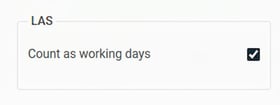
- The unit on the pay code must be work days
- The dates on the pay entry must be entirely within the employment period (otherwise the days will not be included in the LAS calculation).
- The payroll run must be settled for the days to be included.
- If the pay entry lacks dates it will be counted as belonging to the payroll run’s discrepancy period.
Contractual working hours
It does not matter, for the calculation of days, what contractual working hours the employee has or has had.
Age
If the period of employment is equal, the oldest person has priority.
If two employees have the same period of employment, for the priority list in case of termination the youngest will go first, and in the preferential right to re-employment list the oldest is given priority to re-employment.
Employment periods and multiple employments
Calculation is performed on employment periods that have been linked to employments with the same National ID number. If several employments, within the same or different companies in the same concern, have the same National ID number, they are considered linked. Overlapping periods or work days may exist here.
As periods can overlap, this means that some periods/days can be double-counted. A unique day is counted per company/company registration number within the concern. For example, if an employee works in one company in the morning and in another company in the same concern in the afternoon, the employee will be credited with two employment days.
When a person has several concurrent employments registered with the same National ID number in the same company, only one employment day per calendar date will be counted.
Authorisations
To activate any of the LAS views you first need to activate it for the relevant roles:
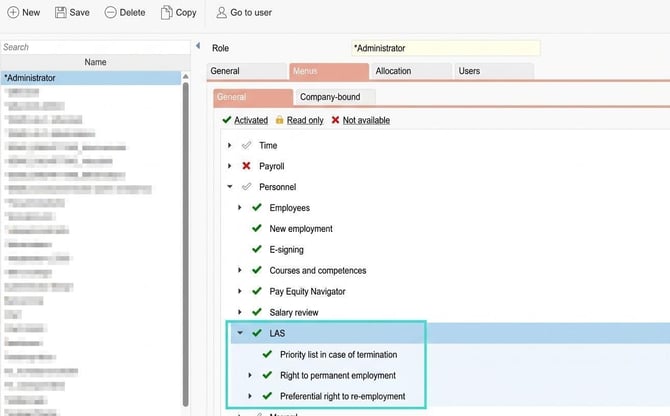
The list Right to permanent employment is authorisation-controlled, which means you see the employees you are authorised to see according to the settings on your user. The other lists are not authorisation-controlled per employee.
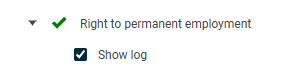
If you also tick Show log as below, for Right to permanent employment, the relevant role will be authorised to see information in the log for all employees in that list, i.e. not just those employees for whom the role has access. Read more about the log in a separate section.
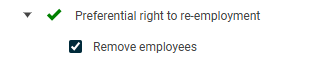
If you tick Delete employee for the list Preferential right to re-employment you have the possibility to remove an employee from that list.
Licence and home country
To be able to connect the authorisation as above, you need HRM Employee or HRM Payroll in the licence and you must have Sweden as your home country according to the setting under General > Company.
Form of Employment
To process the calculation in HRM you need to review the settings LAS under Settings > Personnel > Types of employment.
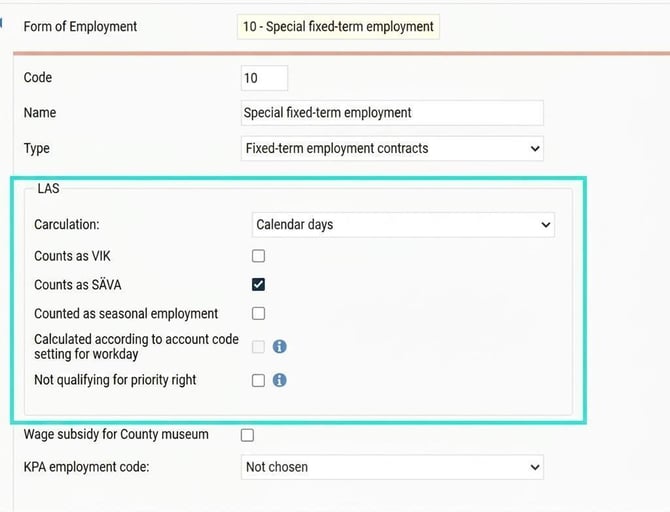
By default the calculation is set to Calendar days for all types of employment. If you have a collective agreement that bases calculation on worked days, you need to change this for the affected types of employment.
In some collective agreements there are also types of employment that should be entirely excluded from the LAS calculation, in which case you choose Exceptions. This means that employment periods with such a form of employment will not give any LAS days.
- The calculation setting per type of employment affects the calculations for all LAS views.
For those types of employment that are some kind of fixed-term employment, and which should be included in the right to permanent employment and preferential right to re-employment, a selection must be made as to how it will be calculated. It is only possible to check one of the below options per type of employment.
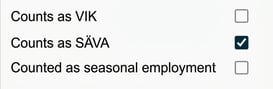
The option for Calculation based on setting on account code for work days can only be selected for types of employment where the LAS calculation is set to Work days and where there is an account code dimension in the current company with the setting for Used for LAS - Right to permanent employment.
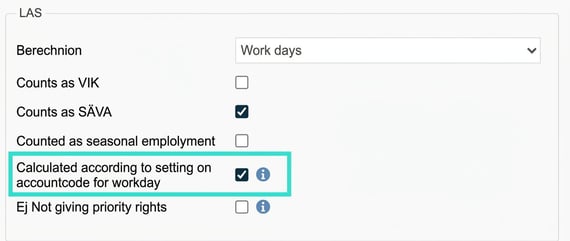
Read more about this setting below.
In cases where a form of employment does not entitle an employee to priority days, you need to have Not giving priority rights ticked. This means that employment periods with this form of employment are only counted as Employment days and excluded from Priority days.
Please note!
It is important that all employment periods for an employee have the form of employment and personnel category filled in so that calculations can be performed.
Calculate based on account code (requires HRM Time)
To be able to work on different types of employment on the same day/period (some agreements allow this) you can use a separate register for different types of employment for time reporting. Note that this can only be used for employment forms where the calculation is Work days.
To use the function, create your own account code dimension for this purpose and tick Used for LAS calculation on work days. This box is not permitted for extended registers.
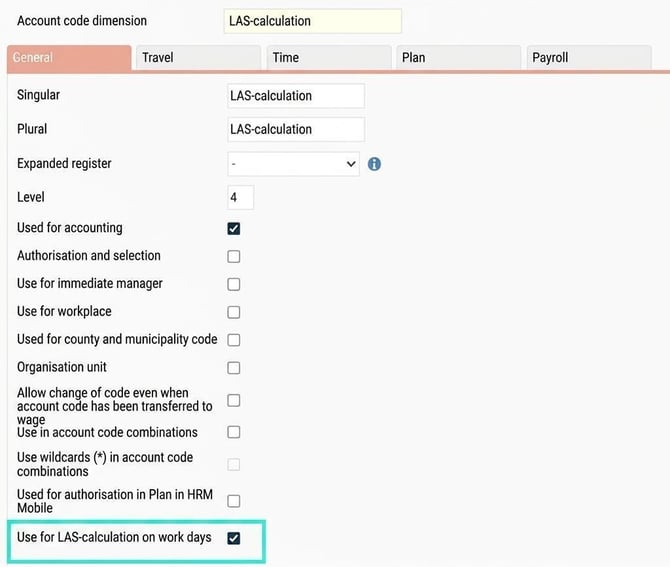
When you have activated this you need to set up options in the register for the created account code dimension by going to Register and creating new codes with code and name. You then choose whether each option is to be counted as SÄVA or VIK for the calculation of work days.
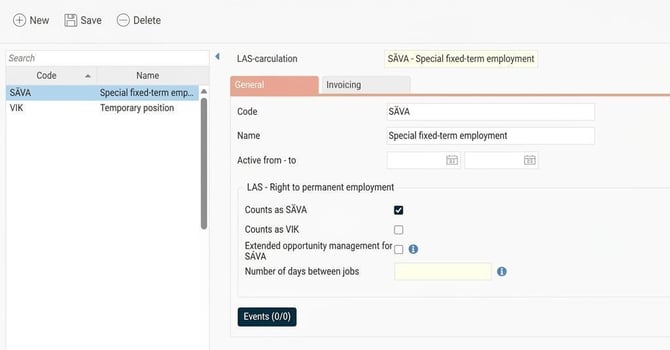
If only account code for SÄVA has been used on a day, it generates a SÄVA day.
If only account code for VIK has been used on a day, it generates a VIK day.
If account code for SÄVA and VIK have both been used on the same day on different time rows, it generates two days, i.e. one for SÄVA and one for VIK.

On work days when neither of the above options have been selected, the setting on the form of employment that the employee has set on the Employment tab in the Employee register is used.
Note
- If account code for VIK has been used on a time row and there is also a time row on the same day without LAS account code, only a VIK day will be generated.
- You specify account code for LAS calculation directly in the time report. Remember that you must show the current account code for LAS in the time report so that it can be specified.
If you have the HRM Plan module you can specify the account code per day directly in scheduling. This makes it possible for the person assigning the shift to already choose in the schedule whether the time is to be counted as SÄVA or Temporary position.
Extended opportunity management for SÄVA
The purpose of this setting is to deviate from each worked day counting as an occasion.
If you select Extended opportunity management for SÄVA it is required that Counts as SÄVA is also selected and that Number of days between jobs is filled in.
Number of days between jobs controls how many days are required between two SÄVA days for it to count as a new SÄVA occasion.
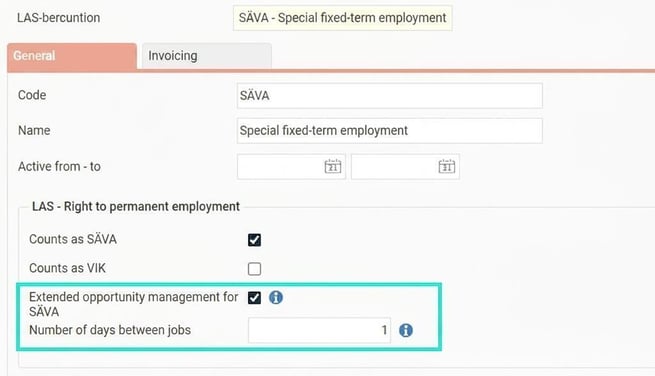
- Example with extended opportunity management (number of days between jobs set to 1 as above)

- If you do not use extended opportunity management, every worked day will count as an occasion, which is the default setting in HRM for SÄVA.

Personnel category
Under Personnel categories you set which threshold value should apply for SÄVA and VIK when calculating the right to permanent employment. The setting applies per personnel category.
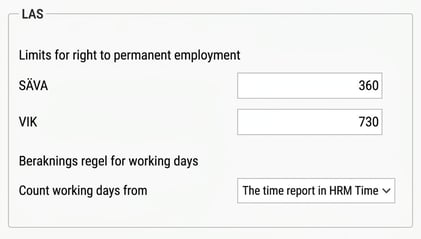
Depending on whether you use HRM Time and/or HRM Payroll, you can choose here whether work days are to be calculated based on the time report in HRM Time or pay codes in HRM Payroll. The setting applies per personnel category.
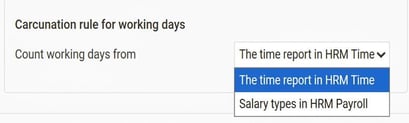
This applies to the types of employment where you have set calculation to be with work days.
If you are to calculate work days via pay code in HRM Payroll you also need certain settings on the pay code.
Please note!
It is important that all employment periods for an employee have the correct form of employment and personnel category filled in for calculations to be made.
End of employment causes
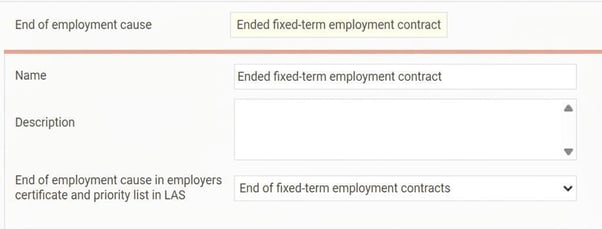
End of employment causes can affect which employees appear in the list for preferential right to re-employment. It is therefore important to set the correct end of employment cause for employees who have quit.
Calculation is based on the setting for End of employment cause in employers certificate and the preference list in LAS and is set per end of employment cause as in the example below:
LAS tab per Employee
In this menu in the Employee register, information can be saved per employee.
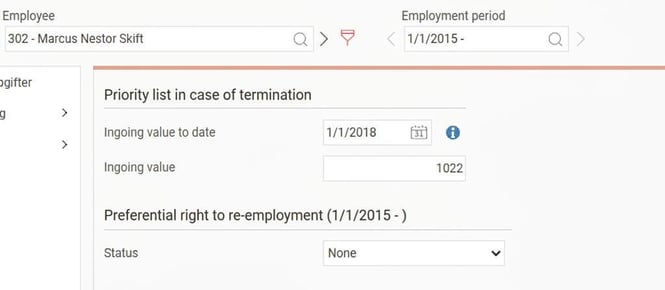
Ingoing value for Priority list in case of termination
Ingoing value and Ingoing value to. are useful if you have certain details about the employee in another system and want to transfer them to HRM.
If there is a value in these fields, HRM will calculate employment days according to the value up to and including the date, and after the ingoing date, the days will be calculated from HRM (employment periods/work days). This means that in Employment days the number of days is added up.
In the example below, the employee has a total of 3866 employment days in the Priority list in case of termination.
1022 (Ingoing value) + 2844 (Employment periods in HRM from 20218-01-02) = 3866.
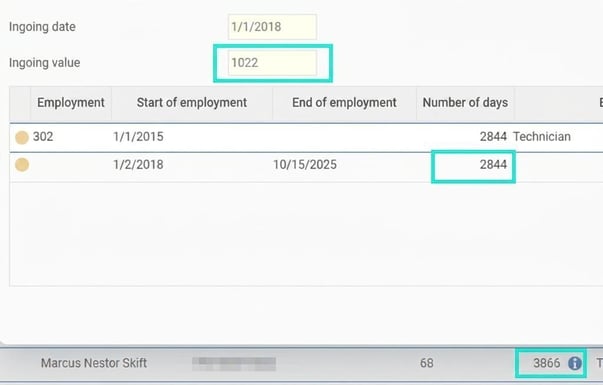
It is important to note that these values are only applied in the calculation of employment days in the priority list in case of termination.
These fields can also be imported via file as well as exported to file.
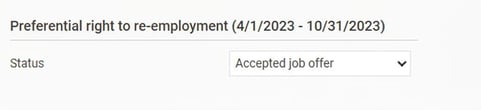
Status for Preferential right to re-employment
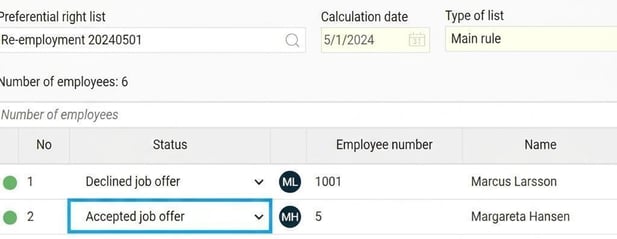
Status for Preferential right to re-employment is used in a structured way to see who has received notification of preferential rights, invoked their preferential rights, been asked for a job offer, accepted a job offer, as well as declined a job offer.
If the status is changed here, it will be updated for the employee in all preference lists to which the employment is linked and where the calculation date is also within the employment period dates.
If the status is changed in the preference list to which the employment is linked, it will be updated in the Employee register.
Related articles
⚙️LAS - Calculation details in-depth
LAS - Preferential right to re-employment
LAS - Right to permanent employment
LAS - Priority list in case of termination
Please note: This article is AI-translated. This means that linguistic errors or misunderstandings may occur.