
You can find the standard reports under the menu Reports
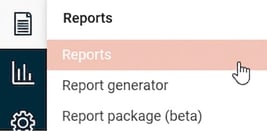
Access to the reports is controlled via the user's roles. Below is a description of how authorisation to the reports is set up.
Authorisation settings
Access to reports is managed via a role authorisation under Administration >
Users/Authorities > Roles, the tab Menus.
Users/Authorities > Roles, the tab Menus.
Under Reports, you can specify which reports a role should have authorisation to.
In the example below, you can see that the role is authorised to the report Personal schedule under the submenu Schedule. You can also see that the role is authorised to reports for Invoicing as well as certain reports under Time report. Other reports are disabled.
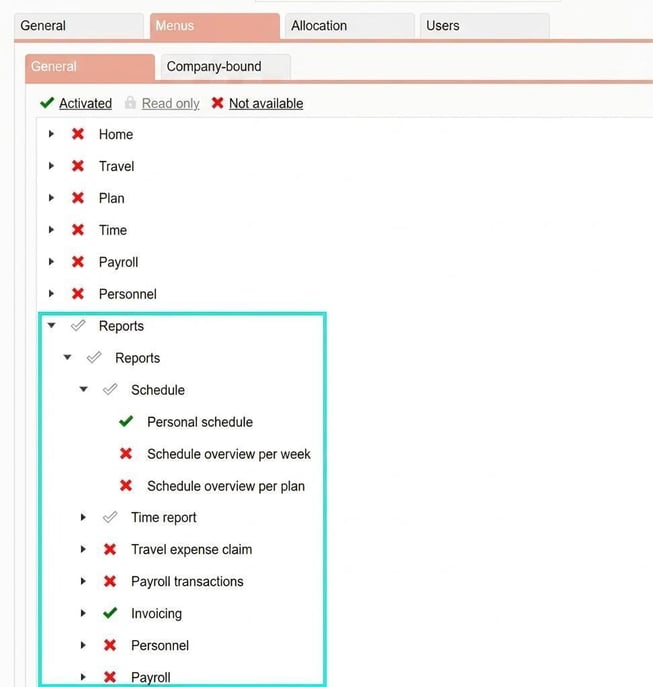
When the role grants authorisation to a report, the user can retrieve the report themselves. The employees shown in the report are those the user has authority for via the role.
For example, we have a role called "Manager", and all managers according to the role have access to reports for their personnel. This means a manager only sees their own personnel when they generate the report.
Bear in mind that authorisation can sometimes be combined with different roles. For instance, a user may have one role granting authorisation to certain reports and certain employees, but another role providing access to other reports.
Please note that
- there are exceptions to the above rule with regards to the report Employee record.
- authorisation to the report Employee list grants access to many fields. See more about the report here.
- Report generator should be regarded as an administrative tool, as users with access to the report generator will have access to all employee data, regardless of other authorisations in the system.
Authorisation for reports created via the report generator is handled differently. Read more about how to share reports and report content from the report generator in this article.
You can find specific details about different reports under each respective sub-module.
Please note: This article is AI-translated. This means that linguistic errors or misunderstandings may occur.