
Roles and authorisations
Connection to Visma Connect
Connection to employee
Deactivation and reactivation of users based on date of employment
Verify multiple accounts at once
Advanced settings
Other settings on the General tab
Filter
Search users
Your user account is your login to Flex HRM. In order to log in and work in the system, you must be linked to one or more roles. The roles control what you can see and do in the system.
You can have several roles at the same time to have the correct authorisations. For example, a user can have one role to process their own time report and another to view all employees in the Attendance View, but without permission to see their time reports.
Roles and authorisations
Under Users/Authorities > Users, on the tab Authorisations, you can view and change the user's roles.
-
A role at company level grants authorisation for all employees in the company.
-
A role at account code level grants authorisation for all employees who have that specific account code as their home account code.
|
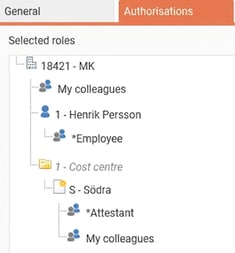
The image shows a user who has the role *Employee for themselves, My colleagues and *Approver for all employees with home cost centre South as well as My colleagues for the entire company. For more information on how a user's roles work, we recommend the article: Which role applies when a user has multiple roles? |
|
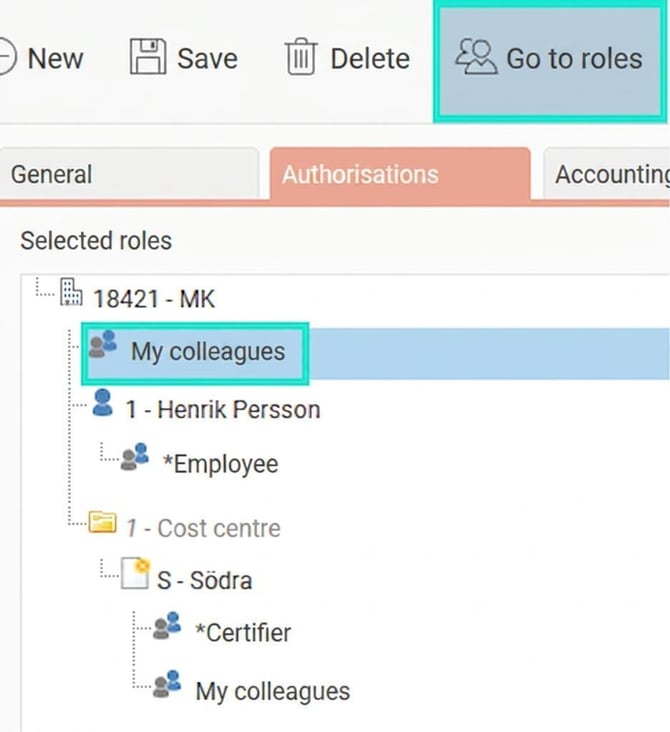
| Tip If you want to know what a specific role entails, highlight the role in the user's authorities and then click the button Go to roles. The view where you manage roles will then open, and the selected role will be shown directly. |
|
Overlapping authorisations during change of account code
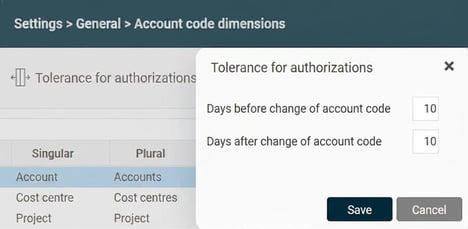
When an employee changes their home account code, it may be helpful to let the authorisations overlap for a period. This allows both the old and new manager to process the employee's time reports and travel expense claims during the change. You set this up under Settings > General > Account code dimensions in the field Tolerance for authorizations. There you can specify how many days before and after a change the new and old manager should be able to see the employee.
Connection to Visma Connect
Login to Flex HRM and HRM Mobile is done via Visma Connect. For a user to be able to log in, they must be connected to Visma Connect using an email address.
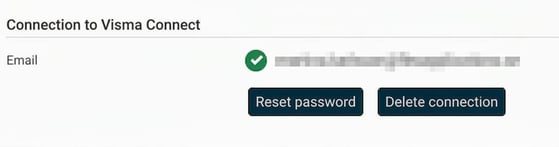
If the user is connected to Visma Connect, the email address and the buttons Reset password and Delete connection are displayed.
-
Click on Reset password so the user receives an email with the option to reset their password for Visma Connect.
-
Click on Delete connection if, for example, you need to create a new connection with another email address.
You can read more about the setting for requiring two-step verification in this article: ⚙️Can we require two-factor authentication (2FA) when logging into Flex HRM with Visma Connect?
If the user does not have a connection to Visma Connect, fields for email and information that the connection is missing will be shown.
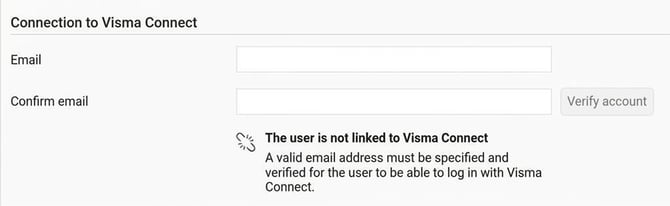
You can specify the email address for the user to log in with and click Verify account.
-
If you have a verified domain (General > Security) the account is created immediately.
-
If you do not have a verified domain, an email will be sent to the user to verify and create the account.
QUESTION:
We have some users who only use HRM Timeclock. They clock in/out and register absences in HRM Timeclock, and never log into Flex HRM. Do they need to be connected to Visma Connect?
ANSWER:
No. They can use HRM Timeclock without providing an email address or creating an account in Visma Connect.
Can I change the Visma Connect email address via import?
It is possible to import the Visma Connect email address for users who do not already have a verified connection to Visma Connect.
For users who are already connected to Visma Connect, the connection must be removed before an import can work. If you attempt to import a Visma Connect email address for such a user, an error message will appear in the import log.
Connection to employee
On the tab General under Users/Authorities > Users you can connect the user to their employment. This connection is necessary for the user, for example, to be able to see their own time report and travel expense claim in the mobile application, for clockings to be correctly registered, and for reminders set to be sent to the employee to end up with the correct user.
Deactivation and reactivation of users based on date of employment
A user linked to an employee can be set up to be activated and deactivated based on the employee's date of employment.
The example below shows a user connected to employee 8. The user is configured to be deactivated five days after terminated employment and to be reactivated one day before a new employment period.
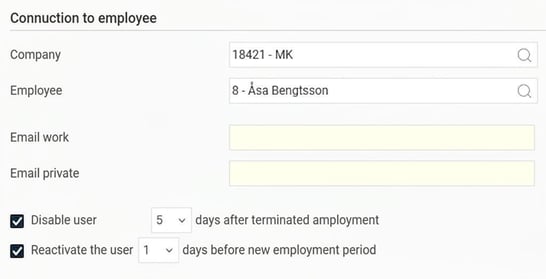
This means that if employee 8 leaves on 31 October, the user account will remain active until 5 November. This can be useful so that the person can complete their time reports and travel expense claims after the employment has ended. On 6 November, the account will become inactive, and the employee can no longer log in.
The connection to Visma Connect is also removed when the account is deactivated based on the date of employment. The process for deactivating accounts according to employment date runs as a background job. This means that the removal does not happen immediately, but the next time the background job runs (once per day).
If employee 8 is re-hired, the account will be activated one day before the new date of employment. However, this does not apply to the Visma Connect account. If it has been removed from the user, the connection must be created manually upon re-employment.
Tip
Do you have employees who return at regular intervals? Then it may be useful to create a separate user template for them.
In the template, you specify a higher number of days for deactivation. In this way, the user keeps their Visma Connect connection longer between periods of employment, and you avoid having to reactivate it manually.
Note
If you manually deactivate a user directly in the user register, the connection to Visma Connect will not be removed automatically.
In these cases you must use the button Delete connection to remove access manually.
Verify multiple accounts at once
| The button Verify accounts can be used to verify multiple users for Visma Connect at once. This way you don't have to select one user at a time. |  |
When you click Verify accounts all users who:
-
Match your filter
-
Have a saved email address for connecting to Visma Connect
-
Are not yet verified.
The process for creating accounts is the same as for individual users:
-
If you have a verified domain (General > Security) the accounts are created immediately.
-
If you do not have a verified domain, an email will be sent to users to verify and create the accounts.
Advanced settings > Internal authentication
Password for Visma Connect is managed in Visma Connect. To start HRM Timeclock the user-ID and password from the user register are used.
Other settings on the General tab
On the tab General you will find several settings related to the user's functions in the system.
| Setting | Description |
| User is activated | Only activated users can log into the system. |
| User-ID | The user’s unique designation in the programme. Used for clocking, logging in to HRM Timeclock, and displayed in logs for users who lack a signature. The programme does not distinguish between upper- and lower-case letters in user-ID. |
| Alias user-ID | Here you can enter an alias for the user, for example an alias consisting of numbers only. This can be useful for clocking if the employee has letters in their user-ID, as some terminals do not support letter entry. |
| Signature | The user’s signature, for example, the first letter of their first name and the first two letters of their surname. This signature is used, for example, when the user approves a time report or travel expense claim, or generates a payroll transaction file. |
| Card-/Tag-ID | The tag-ID that the user has on their key fob or card. The fob/card can be used by the employee to clock in and out via the time clock terminal. |
| The user’s email address. A user linked to an employee also receives the email address from the employee’s employee information. | |
| Show instruction videos at startup | If this box is ticked, a window with instruction videos appears when the user logs in. This requires the company to have uploaded instruction videos under Settings > General > Instruction videos. There you can also select which videos are displayed for which roles in the company. |
Filter
You can use the filter in the user register to quickly find users. You can filter based on:
-
Users who are authorised for or connected to a certain company. Authorized/Connected to current company means the company you are logged in to right now (displayed in the footer at the bottom right).
-
Users who have a specific role.
-
Active or inactive users.
-
Status for connection to Visma Connect (for example, whether they are verified or not).
Search users
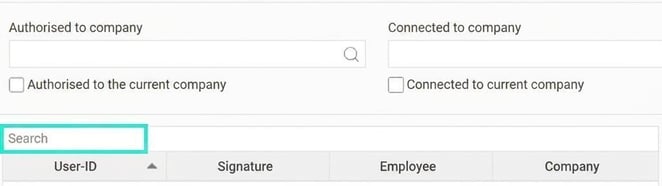
In the search box, you can search for user-ID, signature, company, employee, Visma Connect email address.
Related
What is a role?
Which role applies when a user has several roles?
Roles and authorisations in Flex HRM
Please note: This article is AI-translated. This means that linguistic errors or misunderstandings may occur.