
Different parts of the view
Create a specification
Specification number
Completing a specification
Warnings for incorrect values
Check the specification
Export the specification to Excel
Direct submission to SKV
Create file to SKV
The ongoing work with AGI in Flex HRM Payroll
Reporting of PAYE return on individual level should take place each month. In order for this to run as smoothly as possible, we've built a function for handling, which you will find under the menu Payroll > Agi. Here, everything is gathered in one place for handling the new reporting, and it is recommended to have this page open in its own folder alongside payroll processing to easily switch between the two.
Different parts of the view
At the top of the view above the list you will find the following details:

-
Accounting period
Here, you select which accounting period you want to work with. Click on the search button to see a list of earlier accounting periods.
-
Status
Shows whether the specification is preliminary or inspected. Only an inspected specification can be reported to the Swedish Tax Agency.
-
Signature, date and time
When the specification is marked as inspected, the time and the person who did this is shown.
Central in the view is the list of the employees included in the reporting.
To the left of the list, there is a status indicator for warnings. Green means that no errors have been found. Red means errors have been found. Read more about this in the warnings section.
The list shows a summary of details reported to the Swedish Tax Agency, giving an overview of gross wage, benefits, tax and employer's contributions. 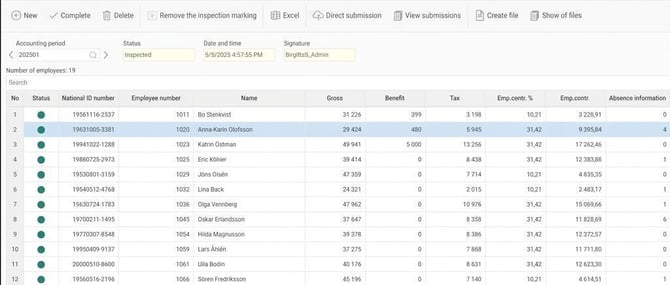
Above the list is a search field where you can search all information shown in the list, such as employee name, social security number or employee number.

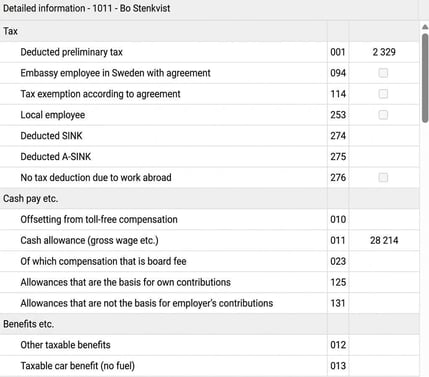
On the right of the image, details about all personal information reported for the employee marked in the list are displayed.The details are grouped by topic, and for each field you see the Swedish Tax Agency's field code and the reported value. See the separate section for how these values are calculated by the system.
At the bottom of the view are the main details reported to the Swedish Tax Agency. Main details mean details relating to the entire company, such as Deduction for Regional aid, research and development, total employer's contributions, tax on interest and dividends, tax deduction, and total cost for sick pay (until 240630).

Handling of öre amounts for reported sums and during calculation
Calculation of employer's contributions in the PAYE return (AGI) in Flex HRM Payroll is done per employee before summary. This means the system rounds each individual's sum to integers by truncation according to the tax procedure act, and then these values are summed to the total for the reporting.
This can result in a small difference between the personal information and the main details, as öre amounts are truncated per individual and not on the total sum. This handling follows the Swedish Tax Agency's AGI rules.
Create a specification
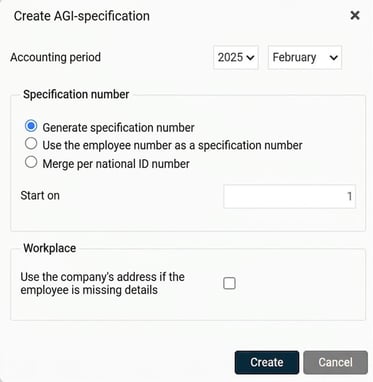
When you want to start with reporting for a month, start by creating the specification for the reporting by clicking the button New in the button row at the top. In the window that appears, you enter the year and month that the reporting refers to in the field for accounting period. Then you select how the specification number should be generated (see next section), and start the calculation of the specification by clicking Create.
Specification number
When reporting to the Swedish Tax Agency you must specify a specification number that becomes an identification number for the reported details per individual. If you have employees with multiple employment numbers, you can choose to merge the reporting or report separately per employment number. The most important function for specification numbers is if you need to submit a correction to the Swedish Tax Agency, then you must provide the same specification number as previously reported so that the corrected details replace earlier submitted data.
When you create the specification, you choose how the specification number should be generated by the system. The generated specification number is then saved in the employee register and is used for future reporting and corrections.
The following options for generation exist:
- Generate specification number
This means that the first employee number for each national ID number receives the specification number you have chosen under Start on. If, as in the example above, we choose to start at 1, and have an employee with two employee numbers, the first will get specification number 1, and the second specification number 2. People who only have one employee number will receive specification number 1. - Use the employee number as a specification number
Just as it sounds, you use the employee number as the specification number. This can be practical as employee numbers are identification numbers in the payroll system. If you use letters in the employee number, this function cannot be used. - Merge per national ID number
If you select this option, the reporting will be merged per national ID number and will use the specification number you choose. The advantage is that you get a summed reporting per person, but it can mean it is harder to identify incorrect sums if you have multiple employee numbers.
The option you chose will be remembered by the system for the next accounting period.
Completing a specification
When you have created the specification and discover something is wrong, you can complete the specification for one or more employees. For example, if you discover that a pay code has not been linked to an accumulator correctly, after correcting the settings on the pay code, you need to complete the specification for AGI for the recalculation to occur. This is done by clicking the button Complete in the button row and here select which employees should be completed.
Preliminary specification
When the specification for an accounting period has been created, it is preliminary until the specification has been marked as inspected. You can have several preliminary accounting periods with AGI specifications at once if, for example, you need to make corrections. A preliminary AGI specification cannot be reported to the Swedish Tax Agency.
You can create a preliminary specification even when there are preliminary payroll runs for the accounting period to allow reconciliation before the payroll run is finalised. If you make changes in a preliminary payroll run, the AGI specification is recalculated automatically.
Warnings for incorrect values
The system has built-in controls to help avoid incorrect reporting to the Swedish Tax Agency. Important to keep in mind is that the reporting may still be incorrect even if the system gives no warnings. For instance, if an allowance or benefit is not entered in the system, the reporting to the Swedish Tax Agency will also be incorrect.
What the system checks is whether, according to the pay code's settings, the chargeable and taxable gross wage and benefit match the reported details at individual level via accumulators.
The following controls exist:
- That tax on the personal information matches the employee's contribution on the main specification.
The reason for this error may be that pay codes for tax are not linked to the correct accumulator or that the accumulator for tax is not linked to the correct box in AGI.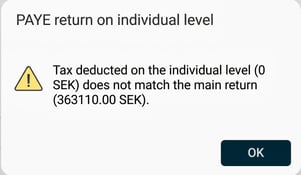
- That calculated employer's contribution based on fields used as basis for employer's contributions (011, 012, 013, 018, 019) on the personal information matches the employee's contribution to the employer's contribution on the main specification.
The cause of this error may be that pay codes for chargeable allowance or benefit aren't linked to the right accumulator or an accumulator is not linked to the correct box in AGI. The error may also be that a pay code is tax-free but should be taxable or vice versa.
To locate the error, a tip is to generate a list with all of the employee's transactions and review which of these are subject to employer's contributions and to which accumulator/box they are linked. We suggest using the report Allocation of amount and number to Excel.
A more extensive instruction is available in the article How do I find differences in tax and employer's contributions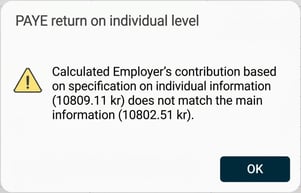
- That there are no fields containing negative values. Both personal details and the employee's contribution to the main specification are checked.
The reason for this error may be that the employee is in a debt situation (negative gross wage/net wage).Read more about handling this situation in the article "How do I correct an error in earlier PAYE returns (AGI) in HRM Payroll?"
The error may also be due to incorrect linking of pay code or accumulator. The easiest way to find the reason for the error is to check the accumulators and pay codes assigned to the current field.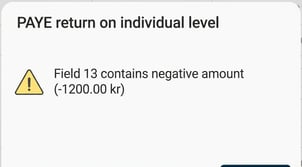
If the system detects any of these errors, a red signal is shown in the status column. To quickly find employees with warnings, you can sort by the status column by clicking the column header.
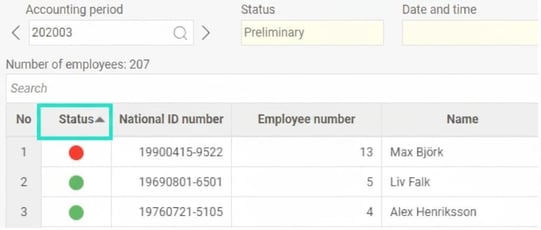
By clicking the red signal, you get information about what is wrong according to the examples in the list above.
Check the specification
Before the reporting is sent into the Swedish Tax Agency you need to check that everything looks correct. This can be done by auditing the specification in the view or by exporting it to Excel.

You should perform a reasonableness check of calculated employer's contributions and preliminary tax, and compare if the correct number of individuals are included in the reporting. You should also review any warnings from the system as per the previous section.
When the specification is inspected and everything appears correct for the accounting period, mark the specification as inspected by clicking the green tick in the button row.

The specification is then locked for changes and you can now create the file for reporting to the Swedish Tax Agency. The time and the person who marked the specification as inspected is logged and visible at the top of the view.

When you have marked a specification as inspected you cannot create a new payroll run with payment for the same accounting period. If you need to make an extra payment or correction in the same period, you must first remove the inspection mark for the AGI specification. This is done by clicking the tick in the button row once more. You can then resume working with payroll payments for the period and recheck the updated AGI specification to make a correct reporting to the Swedish Tax Agency.
For more information on how to correct already submitted details see the article on Corrections.
Export the specification to Excel
You can also export all specification to Excel to get an overview of all figures and make your own summaries and calculations. This is done by clicking the button in the topmost button row, and it's possible for both preliminary and inspected specifications.

The Excel sheet is divided into three tabs for Main details, Personal information, and Warnings. On each tab you find details corresponding to those found in the view.
To prevent the Excel sheet from becoming unwieldy with lots of empty columns, only columns that contain a value for any employee are shown. This way you avoid seeing fields that aren't relevant.
Direct submission to the Swedish Tax Agency
When the specification is inspected and everything looks good, the last step is to send in the reporting to the Swedish Tax Agency. From version 2023.14 you can opt to make a direct submission to the Swedish Tax Agency without having to handle a file.
When you click the button Direct submission the first step is that you need to authenticate yourself to the Swedish Tax Agency. This is done via personal login with e-identification, similar to normal login at the Swedish Tax Agency's Mina Sidor.
To start the login, click Continue.
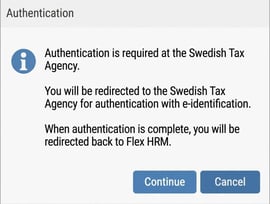
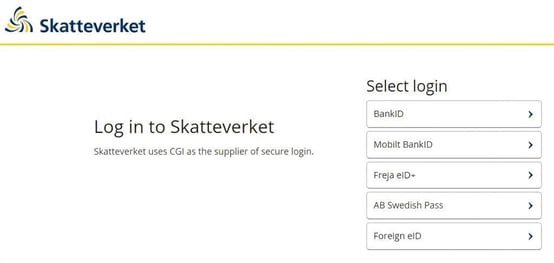
Then follow the instructions to log in to the Swedish Tax Agency.
After the login, you will get the question below where you need to approve that Flex HRM Payroll can send in the details to the Swedish Tax Agency.
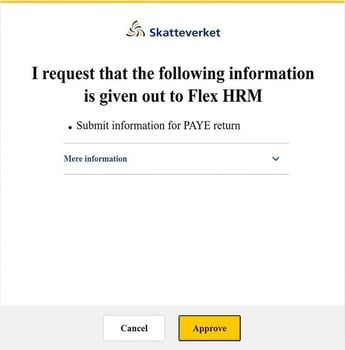
Then you return to Flex HRM where you can proceed with the actual submission of the PAYE return.
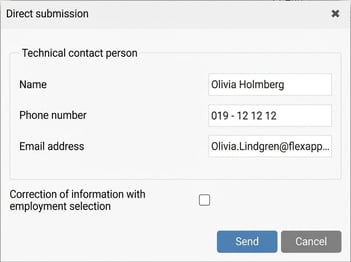
Here you fill in the details for the technical contact person you want to use for the reporting. When you click Send the process for submitting all details to the Swedish Tax Agency begins. If everything goes well, the following confirmation is displayed:
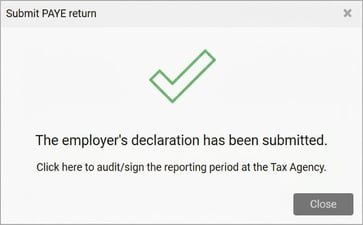
The submitted PAYE return is now on the company's Own space at the Swedish Tax Agency where an audit documentation has been created. You will also receive information if the Swedish Tax Agency approves the details or if any error has been encountered (more info further down). For the PAYE return to be fully submitted, you still need to sign and submit at the Swedish Tax Agency's Mina Sidor. If you want to sign the return directly, you can open the deep link provided by the Swedish Tax Agency from the payroll system by clicking the link.
When you have made a direct submission, a submission status is also displayed. You can also access the deep link for the submitted accounting period afterwards by clicking the button Deep link to the Swedish Tax Agency.

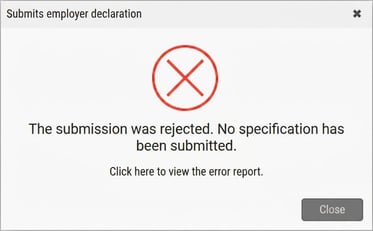
If an error occurs during submission, you may get different types of messages depending on where the error arose. If the details could be submitted, i.e. the file could be created, but the Swedish Tax Agency's controls have found errors in the content, you will get the following message. Here you can choose to open the error report sent back by the Swedish Tax Agency.
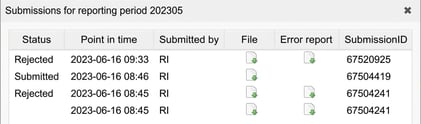
You can afterwards see all submissions made by clicking the button View submissions. Here is both the file for reporting to the Swedish Tax Agency and possibly an error report.
Create file for reporting to the Swedish Tax Agency
When the specification is inspected and everything looks good, the last step is to send in the reporting to the Swedish Tax Agency. This is done by exporting an XML file which you then upload in the Swedish Tax Agency's e-service.

When you click the button Create file in the button row, the following dialogue opens:
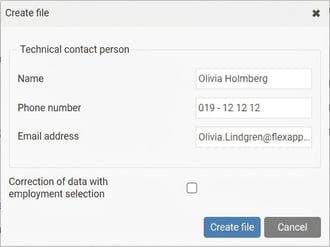
Here you fill in the details for the technical contact person you want to use for the reporting. The system here automatically completes the logged-in user's details from the employee register. You may also receive a message to leave contact information in the Swedish Tax Agency's e-service when submitting the file if you haven't previously entered your contact information in Mina Sidor at the Swedish Tax Agency.
If you wish to create a file to make a correction, you may choose not to include all employees in the file. This can be used if, for example, only one employee needs a correction submitted. You then tick Correction of details with employment selection, which then brings up extra fields for selection of employees to include in the file. Note that it is always the latest submitted file for an accounting period that is used by the Swedish Tax Agency. You can thus submit a whole file again without marking the box for correction, which will then be considered a correction by the Swedish Tax Agency.
For more information on how to correct already submitted details see the article on Corrections.
When you have clicked Create file you are notified that work to create the file has begun. Once the file is ready, you get information and can click the link to download the file. The file's name includes company registration number and accounting period.
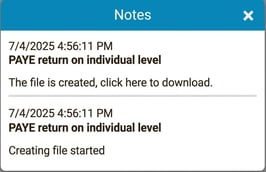
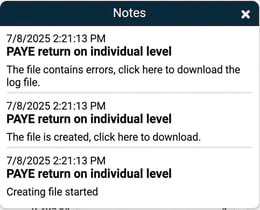
When the file is created, a check against the Swedish Tax Agency's XML schema is also performed to identify any issues at an early stage. These controls correspond to those carried out by the Swedish Tax Agency when the file is imported in the e-service. If errors are detected, you get information as follows, and can click the link to download a log file containing error messages.
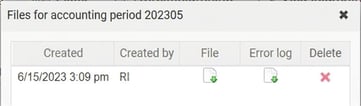
All files created remain in the system and can be retrieved at a later date. By clicking the button Show of files you get a list of all files created for the accounting period you are viewing. Here is both the file for reporting to the Swedish Tax Agency and possibly an error log. You can also choose to remove files you no longer wish to keep.

See Swedish Tax Agency's instructions for more information on how to report the file in their e-service.
Related articles:

How do I correct an error in earlier PAYE returns (AGI) in HRM Payroll?"
How do I find the reason for differences in employer's contributions (AGI) in Flex HRM Payroll?
How do I set up workplace, business location, for the PAYE return (AGI)
in HRM Payroll?
How do you set up the accumulators so the correct value ends up in the right field in the AGI?
Why do I get a warning in the employer's details on individual level (AGI) that there is a negative amount in field 499?
Please note: This article is AI-translated. This means that linguistic errors or misunderstandings may occur.