
General

Employee list

Example reports you can export via the Employee list report

Reports under Payroll:

Bank list

Journal voucher

Allocation of number and amount

Payslip

Payroll specification, payroll run

Vacation balance

Sickness statistics

Pension reports
General
Reports in HRM can be generated with various settings and then exported to any format you choose. If exporting to Excel, certain settings and adjustments need to be made if you wish to work with the report.
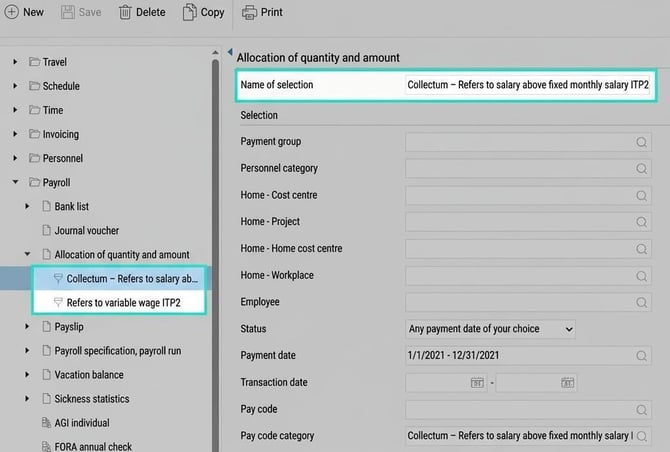
Find out the purpose of the report, who the recipient is, and then build it as you prefer. If the report is to be generated on an ongoing basis, you can save the report by specifying a Name of selection; in this way your settings/selections for the report will be available next time you wish to export it. These saved reports are personal.
Employee list
With the report Employee list, which you’ll find under Reports > Personnel, you can export a summary of desired employee details for the company’s employees, such as address, phone number, employment information and date of birth. Selections can be made per employee, time group, home account code, employment/end date, etc. There are also several grouping and sorting options.
Under View options you specify which information should be displayed in each column of the employee list.

Please note that regardless of your authorisation level for employees in the employee register, you can export every field available in the report for the employees you can print the report for.
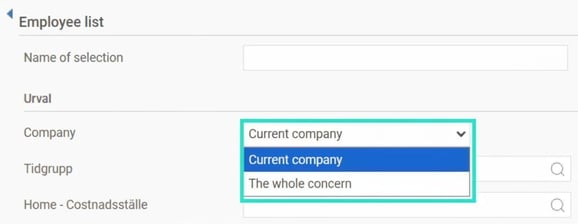
If you have the additional module Concern in your licence, you have the option to choose if you want to display the report for the whole concern or only the company you have open. If you select the whole concern, a number of company-specific selections will be hidden. If you have chosen the whole concern, you will also be able to group by company.
Example reports you can export via the Employee list report
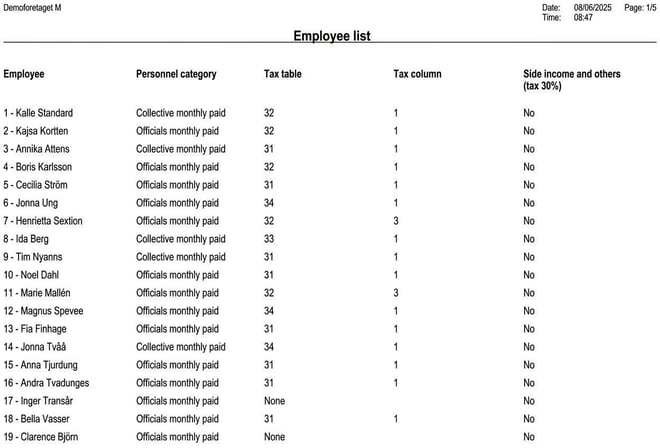
Tax details:
Example of a report for checking which tax details, e.g. tax table, tax column and side income, the employees have.

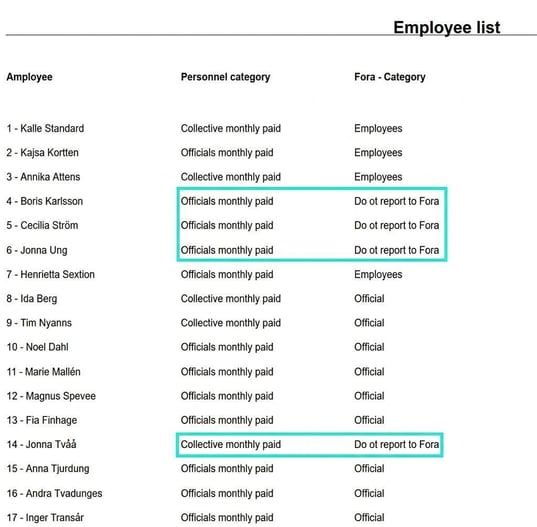
Forums-categories:
Example report for checking that everyone has a category on Fora. In this report you can see if any employees are missing a reporting setting or have an error.

Payroll
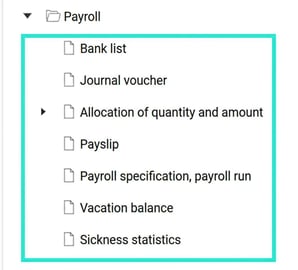
Under Reports > Payroll you will find all standard reports applying to Flex HRM Payroll.
Bank list
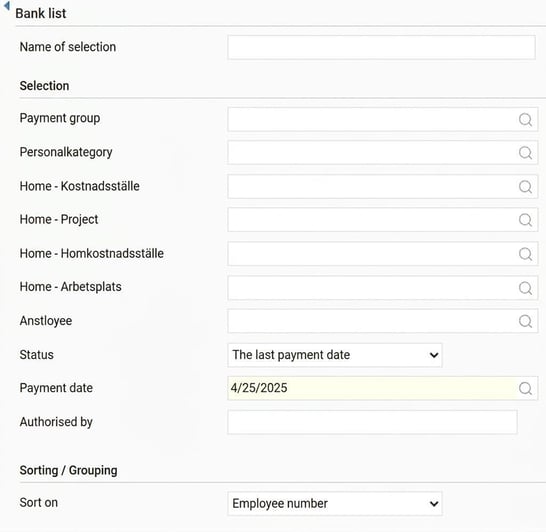
The bank list contains net totals for the current period per employee to be paid out. The list can be used to reconcile with the bank file’s grand total over time. It is also possible to print the list for manager’s signature to approve the payment. Selections can be made by status Preliminary, Latest payment month, Any payment date of your choice, payment group, personnel category, home account code, employee number and approving manager. Grouping/sorting can be made by employee number or national ID number.
Journal voucher
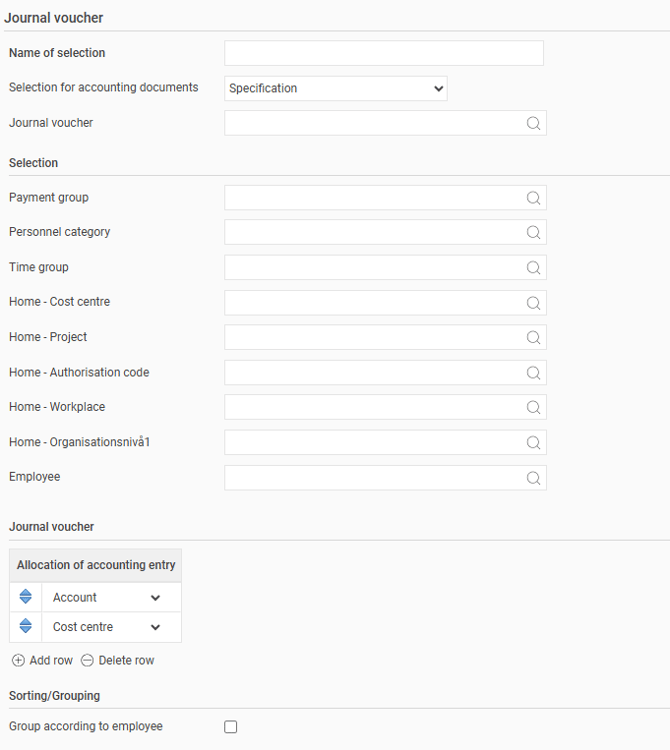
The report Journal voucher can be used to generate a report for one or more journal vouchers (created under Payroll > Accounting).
Selections can be made by payment group, personnel category, home account code and employee number, and you can also select how you wish to allocate accounting entries.
Grouping/sorting can be made by employee.
Allocation of number and amount
This report lets you allocate numbers and amounts based on several selectable parameters, which is especially helpful when investigating differences in the accounting.
Selections can be made by, for example, employee number and personnel category, and sorting can be controlled via different grouping levels.
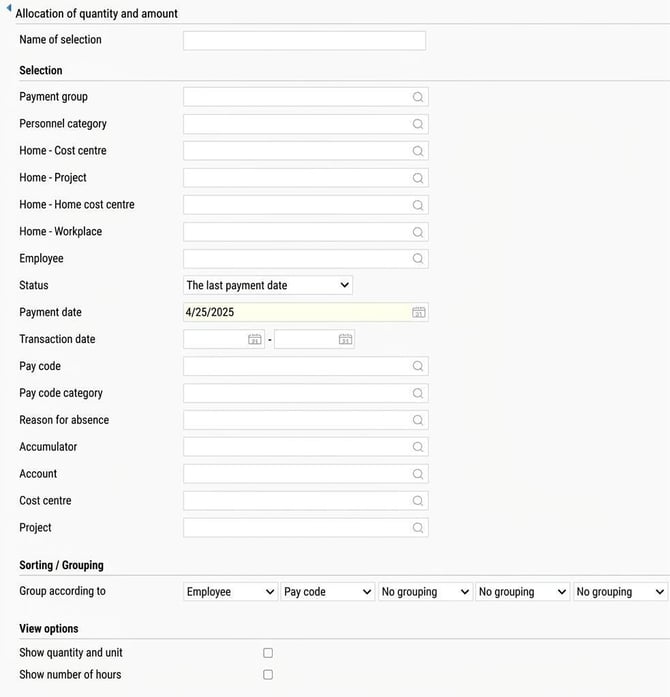
With the selection Pay code category you can limit the report to pay codes of a particular type, which helps with specific pension or statistics reporting.

You can also filter pay codes with special reason for absence or linked to a specific accumulator, which makes reconciliation with AGI easier. For example, Employee as the first grouping level and Pay code as the second offer a structure where pay codes are grouped under each employee – and vice versa if the priority order is switched.

It is also possible to produce amounts allocated per account and employee, in which case the report groups employees under each account.

Payslip
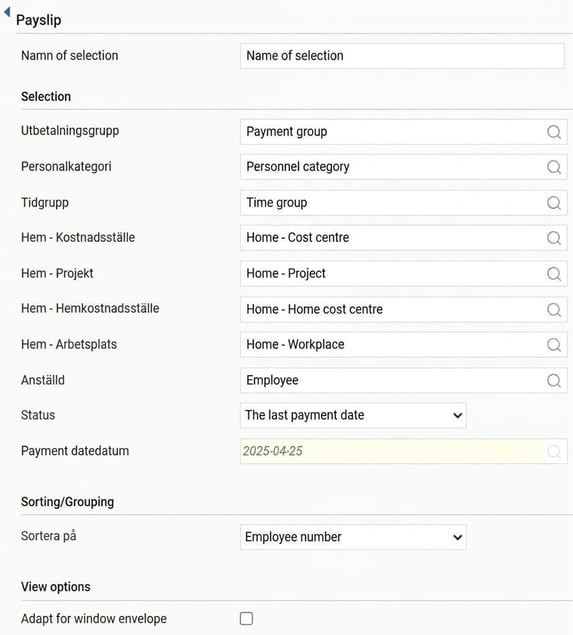
Here you can print payslips for selected employees. You can choose to generate the payslips for the latest settled period within the current payment group, specify your own payment date or export preliminary payslips before settlement to check wages in advance.
In addition to payment group and employee, you can filter by home account code and personnel category. The result can be sorted by employee number or national ID number. There is also the option to order payslips adapted for window envelopes.
Payroll specification, payroll run
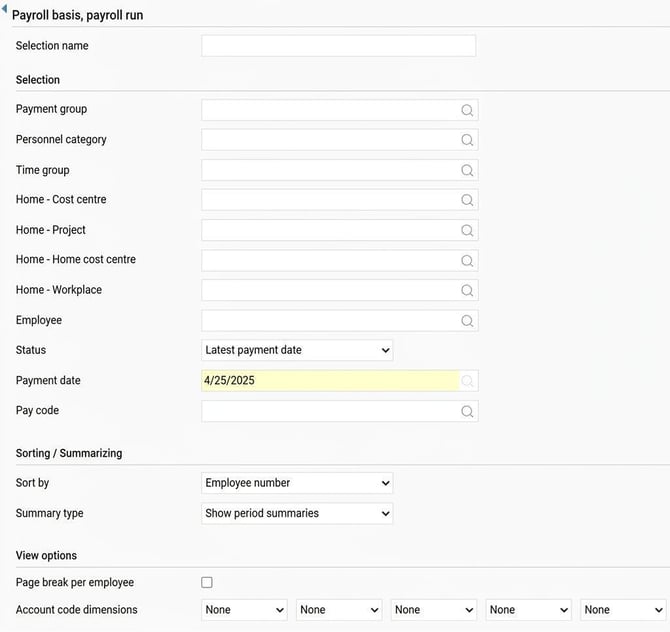
The payroll specification displays the payroll transactions recorded for each employee and period. The report has several possible uses. For example, it can be used as a reconciliation list for payroll payment that can then be sent to each department manager or similar. It can also be used to get an overview of certain pay codes, such as overtime or annual leave, or as a detailed total report for payroll payment for archiving.
You can choose whether to export the report for the last payment date, another date of your choice, or for a preliminary (not settled) period. Further selections can be made by payment group, personnel category, home account code, employee number and pay code. You can also choose which account code dimensions are to be included in the payroll specification.
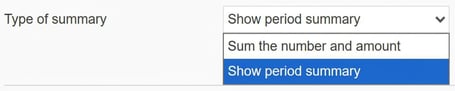
Under Type of Summary you can choose between the options Sum the number and amount or Show period summary. If you choose Sum the number and amount, you will get a summary of the various payroll transactions. This is useful when combined with selection by pay code number. If you choose Show period summary, a summary of details will be shown instead. This is useful for reconciling gross wage/net wage as well as vacation balance, and can be considered a simpler, compressed version of the payslip.
Vacation balance
With the report Vacation balance you can export and view balances from various sources and with different parameters.
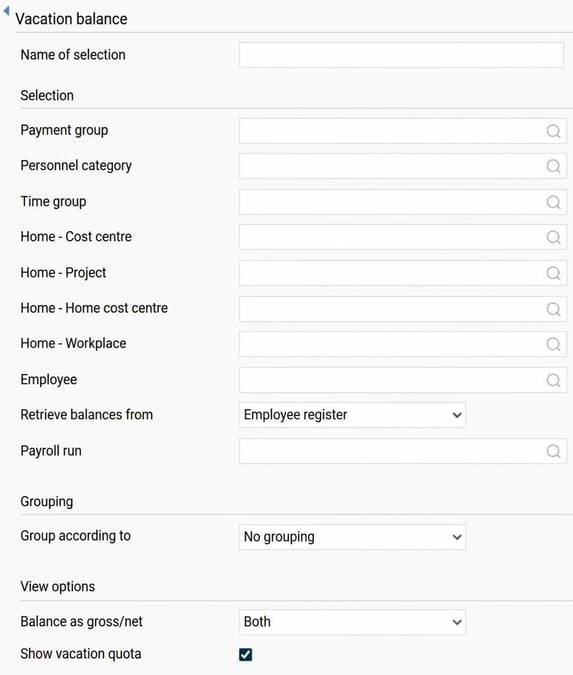
When you export the report, there are several different selections available:
Selection by employees:
Limit which employees should be included in the report.
Retrieve balances from:
You can choose to either retrieve vacation balances from the employee register or from a payroll run. If you retrieve balances from the employee register, you will get the current balance from the Annual leave tab. By instead retrieving balances from a payroll run, you will get the remaining vacation balances that existed in the relevant payroll run. Thus you can export historical vacation balances from all earlier payroll runs.
Grouping:
You can choose to group employees by an account code dimension, such as cost centre, or by personnel category. There is also the option to group by vacation year start date, which is useful for seeing, for example, if all employees are included in the vacation year shift, or if there are different groups of employees with different start dates for the vacation year.
View options:
Choose here whether you want to display vacation balances as gross, net or to show both as gross and net. Net balances are the gross balance recalculated with the current vacation quota to show how many actual days one can be off. For employees with a vacation quota of 1, these balances will always be equal. You can also choose to show the vacation quota on the report or not.
Sickness statistics
This report is used to summarise and follow up the company's sickness statistics. The report shows the number of sick hours per period of illness, number of sick occasions, total number of sick hours, total time absent in relation to scheduled time and number of scheduled hours during the period.
A period of illness is counted as belonging to the column which corresponds with the period’s total number of days. All hours for the period of illness are summed to one column, but only the hours that belong to the selection period (not the entire period of illness if it started before the selection period).
Selection
You must specify which date range the sickness statistics should be calculated for, but can also select which employees to include in the report.
You can choose how periods of illness should be grouped, by specifying different day ranges to be displayed in the report.
Grouping
It is possible to group employees by age groups, personnel category, time group, gender and home account code.
View options
There is an option to choose whether you want to show detail rows for the employees or only a summary row.
Pension reports
General
Pension reporting is done in HRM Payroll under Payroll > Pension.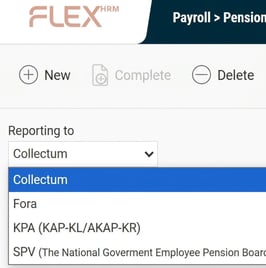
Information on how to export each individual pension report can be found in separate articles.
Related articles:

How do you carry out reporting to Collectum in Flex HRM Payroll?


How do I report pension to Fora monthly in Flex HRM Payroll?


Pension reporting (annual) to Fora - How do I report pension to Fora in Flex HRM Payroll?


How do I report pension specifications to KPA (KAP-KL/AKAP-KR) in HRM Payroll?
Please note: This article is AI-translated. This means that linguistic errors or misunderstandings may occur.