
⚙️Here you can read more about how to create HR-forms.
CV templates
In companies offering, for instance, consultancy services, project management, the works or other services where the competence and experience of key people are important, it is common to maintain a CV for each employee that can be shown to potential customers. Keeping these CVs up to date can be both time-consuming and administratively demanding, and there is a high risk that a CV becomes outdated. To solve this problem, we have therefore developed a function for automatic generation of an always updated CV, using the information entered in HRM.
Create templates for CVs
The function for CV is based on the management of HR-forms under Administration – Settings – Personnel – HR-forms. To create a template for a CV, create an HR-form and select CV under the option Type of template.
The layout of the actual CV is done in exactly the same way as for HR-forms, where, in a Word document, you choose which information should be included and how the document should look.
Information about the employee’s competences and courses can be retrieved from HRM for the CV.
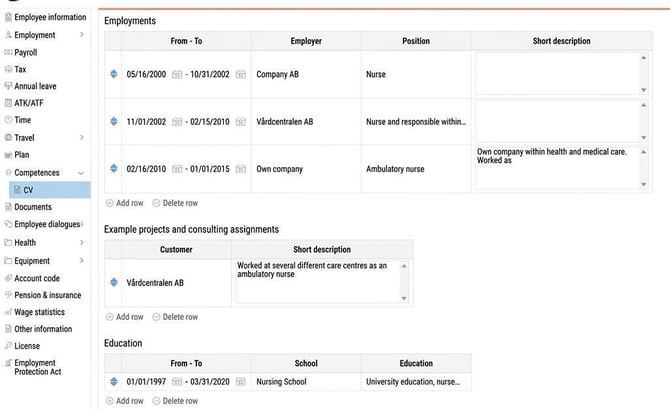
Information about other experiences for the CV is often built as own tables in HRM where users can continuously update the information. See the section on Additional fields to read more about how own tables can be created in HRM.
When you set up your template for the CV, you can also configure whether it should be possible to choose which information will be included in the printout of the CV. This can be useful if you have attended a large number of courses but, for a specific project, want to create a CV that only includes relevant experiences, courses, and competences. To enable filtering at print out, tick the option Filter step.
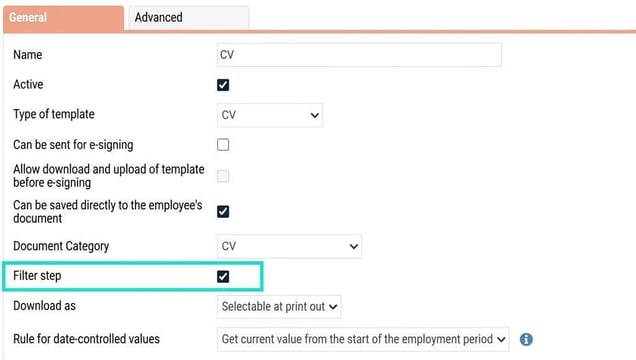
Choose if the CV should be able to be saved directly to the employee’s documents and set how it should be loaded, as pdf, word or selectable at print out.
Then select your Word template and upload it under Select file.
Save.
Related articles
How do you manage documents for employees in HRM Employee?
Load a CV
Please note: This article is AI-translated. This means that linguistic errors or misunderstandings may occur.