
This article provides information about the settings that can be made in the view for account code dimensions.
If you want to read about register settings, we recommend these articles:
What is an account code register?
What is a project register?
What is a customer register?
Content
Settings for account code dimensions, General tab
Settings for Time
Settings for Travel
Settings for Plan
Settings for Payroll
Tolerance for authorisations
Account code dimensions are used to categorise information in Flex HRM. For example, it may involve data for accounting and statistics or to control authorisations in the system.
Each account code dimension has a register that you can use, among other things, to:
-
Group employees into home account codes.
-
Tag time rows.
-
Tag items in travel expense claims.
-
Tag items in payroll preparation.
Settings for account code dimensions
You create and customise account code dimensions under Settings > General > Account code dimensions. Certain levels, such as Account, Cost centre, Project, Customer and Article, are included from the start. You cannot remove these, but you can change their names.
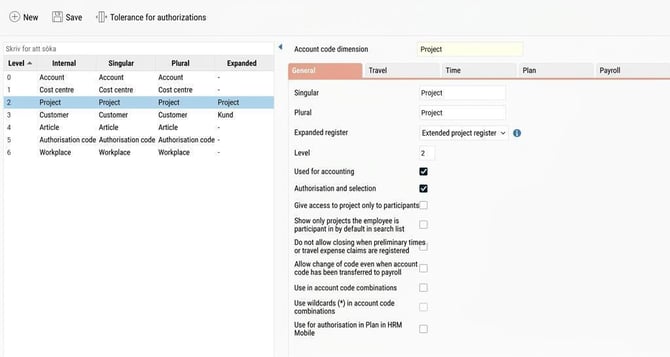
On the General tab, you will find the following settings:
-
Singular/Plural: Here you specify the designation.
-
Expanded register: A register can have an expanded level for project or customer. More information can be found in What is a customer register? and What is a project register?
- Used for: Used only by companies based in Denmark that may need to use registers for lönegrupp and stillingskategori.
-
Level: Choose the desired sorting sequence for each account code dimension.
-
Used for accounting: This setting is only available if your licence includes HRM Travel or HRM Payroll. Tick this box for the dimension to be shown on accounting vouchers.
-
Authorisation and selection: Determine whether you can specify authorisation for the dimension under Administration > Users/Authorities > Authorisations and whether you can make a selection for it.
-
Use for immediate manager: Tick this box on the dimension that you wish to use for the immediate manager function. More information can be found in How Immediate manager works in HRM Employee.
-
Use for workplace: Controls which register is the workplace in AGI. Used by HRM Payroll. More information is available in How do I set up workplace and work location for the employer declaration (AGI) in HRM Payroll?
-
Use for county and municipality code: Controls which register is for county and municipality codes. Used in certain wage statistics in HRM Payroll.
-
Organisation unit: Tick this box if the dimension constitutes an organisation unit. It is then used for the organisation chart and organisational overview.
-
Allow code change even when account code has been transferred to payroll: When this setting is inactive, you cannot change the code for an account code included in a travel expense claim or time report that has been transferred to payroll.
-
Use in account code combinations: This function controls how account codes can be combined at registration. For example, if you want certain cost centres only to be used with certain projects, tick this box for Cost centre and Project.
-
Use wildcards (*) in account code combinations: Controls whether you can use, for example,400*, in the account code combinations register to highlight all projects starting with 400. The use of wildcards may affect the system’s performance.
-
Use for authorisation in Plan in HRM Mobile: It is possible to be authorised to see schedules for employees who belong to the same home account code as yourself. Specify here which home account codes should match to allow schedule viewing. If you tick this on two account code dimensions, both must be the same to give authorisation.
-
Use for LAS-calculation based on work days: Used if you need a register for different types of employment for LAS-calculation.
Settings for extended project register
If you use an extended project register, the following settings are also available on the General tab:
-
Only allow participants to access projects: Employees will then only be able to use projects they are participants in, or where all employees are participants, in their time reports and travel expense claims.
-
Show only projects in which the employee is a participant as the default in the search list: To make it easier for employees to find 'their' projects, you can use this setting. They then only see their own projects by default, but can choose to show all.
-
Automatically add participant when selected in search list: Only shown if the above setting is ticked. If an employee chooses to show all projects and uses one they were not initially a participant in, they will automatically be added as a participant.
-
Do not allow completion if preliminary times or travel expense claims are registered: Tick this box to prevent projects included in preliminary travel expense claims or time reports from being completed.
Settings for Travel
The Travel tab is shown if you have a licence for HRM Travel and contains the following settings:
-
Rule: Controls how the account code dimension is to be handled in travel expense claims. Choose between:
-
Can be specified: The field is optional.
-
Must be specified: The travel expense claim cannot be reviewed unless the field is filled in.
-
Locked: The field cannot be changed.
-
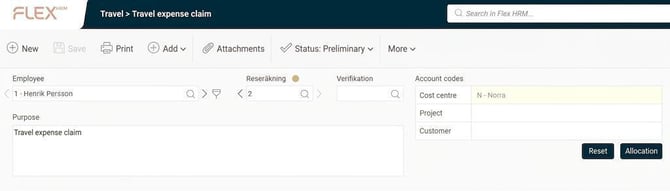
The figure below shows a travel expense claim’s main account code where the cost centre has the rule Locked, while project and customer are set to Can be specified or Must be specified.
-
Show in the header details of the travel expense claim: The dimension is displayed at the top of the input screen for travel expense claims.
-
Show at registration of transactions: The dimension is shown when travel and expenses are registered.
-
Post home if clean from: If nothing else is specified, account code is posted from the Employee register, the Account code tab.
-
Post account code from Project: Controls whether account codes linked to projects in the project register are automatically filled in when a project is selected in the travel expense claim.
-
Percentage allocation: Controls whether you can allocate travel expense claims/expenses/travels by percentage, for example 50 percent on cost centre A and 50 percent on cost centre B. If percentage allocation is used, the button Allocation is shown in the account code allocation of the travel expense claim.
Settings for Time
The Time tab is shown if you have a licence for HRM Time and contains the following settings:
-
Rule: Controls how the dimension is handled in time reports. Choose between:
-
Can be specified: The field is optional.
-
Must be specified: The time report cannot be reviewed unless the field is filled in.
-
Locked: The field cannot be changed.
-
-
Post home account code if clean: Controls whether the dimension should be posted from the Employee register, the Account code tab if the field is left blank in the time report.
-
Post account code from Project: Controls whether account codes linked to projects in the project register are automatically filled in when a project is selected in the time report.
-
Use time code discrepancies: Makes it possible to specify a time code on an account code. A setting for time code will then be added in the account code register. When you register time with the account code, the deviating time code will be filled in automatically.
-
Change of account code by location in HRM Mobile: Use GPS positioning in HRM Mobile to clock against the correct account code automatically. More information can be found in Clock in HRM Mobile with the help of location.
-
Use for absence: Allows employees to specify an account code for application for absence. This can be used to direct absence approvals to the correct project manager, or for account coding to end up on the correct project in the time report for follow-up. This setting can be ticked for several account code dimensions.
-
Use for temporary lending: Used when an employee is temporarily lent to another department but retains the same manager. You choose which account code dimensions can be used for temporary lending. Via an icon in the time report, you can then specify the time interval and the temporary account code. The temporary account code is then posted on the time rows, unless otherwise specified.
Settings for extended project register
On the Time tab there are also the following settings for the extended project register:
-
Clean connected account codes when project is changed: If you select a project that automatically fills in other account codes, such as customer, you can select this setting to ensure these account codes are removed if the project is deleted from a time row.
-
Allow registration of time on project before start date and after end date: Tick this box to allow time reporting on a project even outside its start and end dates in the project register.
Settings for Plan
If you use HRM Plan, you can staff using an account code dimension. Here you control which account code dimension is used for staffing.
Settings for Payroll
-
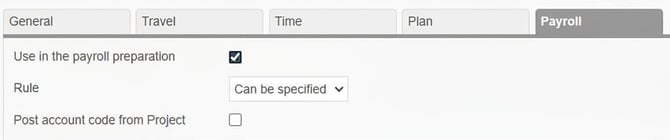
Use in the payroll preparation: Tick this box if the dimension should be selectable in the payroll preparation.
-
Rule: Controls how the dimension should be handled in the payroll preparation.
-
Could be specified.
-
Must be Specified.
-
Locked.
-
-
Post account code from Project: Controls whether account codes linked to projects in the project register are automatically filled in when a project is selected.
Tolerance for authorisations
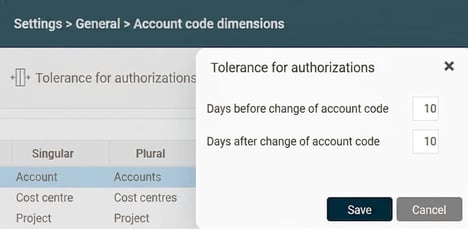
When an employee changes home account code, it may be useful to allow authorisations to overlap for a period. This enables both the old and the new manager to handle the employee’s time reports and travel expense claims during the change. You set this under Settings > General > Account code dimensions in the field Tolerance for authorisations. There you can specify how many days before and after a change the new and old manager should be able to see the employee.
Related articles
What is an account code register?
What is a project register?
What is a customer register?
How Immediate manager works in HRM Employee
How do I set up workplace and work location for the employer declaration (AGI) in HRM Payroll?
Clock in HRM Mobile with the help of location
How do we set account code combinations?
Please note: This article is AI-translated. This means that linguistic errors or misunderstandings may occur.