
Basic settings
Licence
Activate the Salary review licence for your company General > Company
Audit levels
In HRM you can create as many audit steps as you need to approve new wages.
1. Create audit levels
Start by creating the audit levels used in your organisation. You do this once and the levels can then be used in all companies.
-
Go to Administration > General > Audit levels > Salary review.
Here you name the different levels in their various forms and choose a colour for each level.
- If there are no audit levels here, you need to create them. Click on New, specify a name and Save.
Note that the menu Administration > General > Audit levels > Salary review is shared by the system and applies to all companies in your installation. If you change the name of an audit level, it is reflected throughout t
2. Activate and arrange levels for a company
Next, select which of the created audit levels the company should use.
-
Go to Administration > Settings > General > Audit levels > Salary review.
-
In the list on the left you can drag and drop the levels to determine the order in which they will be displayed.

-
You can also specify whether one audit level requires another audit to be completed first.
Example of a feed:
-
The Line Manager submits the wages when pay review is finished.
-
Next level Manager approves the new wages.
- The HR department/CEO approves the wages for the entire salary review.
- The salary discussion is held and the new wage is communicated to the employee.
-
The wages are implemented.
Authorisations
To ensure everything works correctly, you need to review the authorisations for roles that will work with the salary review. Do this under Administration > Users/Authorities > Roles.
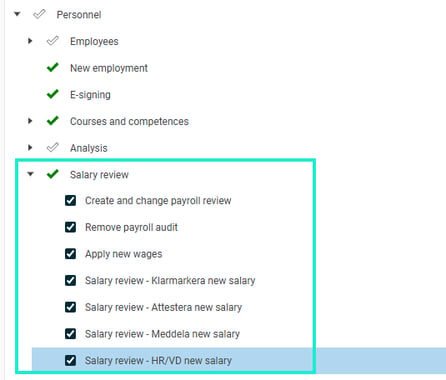
Explanation of authorisations

This authorisation controls which employees a user can see and amend in the salary review. You can also grant read only access to users who should not be able to change wages.

These authorisations are intended for Administrators or HR who are preparing the salary review before the wage-setting managers get access.

Grants an Administrator the right to implement a wage that has been audited. To implement means the new wage is saved in the employee register and can be transferred to the payroll system.
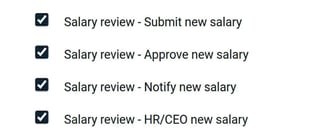
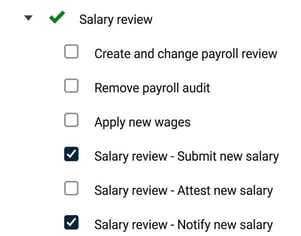
These check boxes give the user authorisation to carry out a specific audit level. Here a manager may be authorised to submit the new wages, and a HR Responsible or higher manager can be authorised to approve them.
Example of a role for a wage-setting manager: A manager with this role for their group of employees can set new wages, submit them, and tick that the salary discussion has taken place.
Trade union
You can register which trade union an employee belongs to, which is useful when creating pay pots for different collective agreements in the salary review.
-
Start by setting up a register of current trade unions/collective agreements under Administration > Register > Trade union.
-
Then go to the employee register and specify the trade union on the Employee information tab. Employees can also specify this themselves under My information.
Additional fields
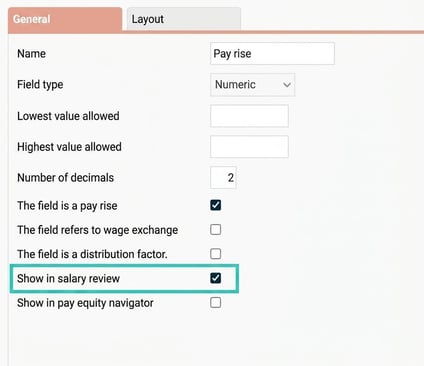
Under Additional fields you can create custom fields that may be helpful during pay review. For example, you can add fields for pay rise and benefits on the Payroll tab in the employee register.
You’ll find the setting under Administration > Settings > Personnel > Employee register > Additional fields.
For an own field to appear as a column in the salary review, you need to tick a specific check box.
Reminders
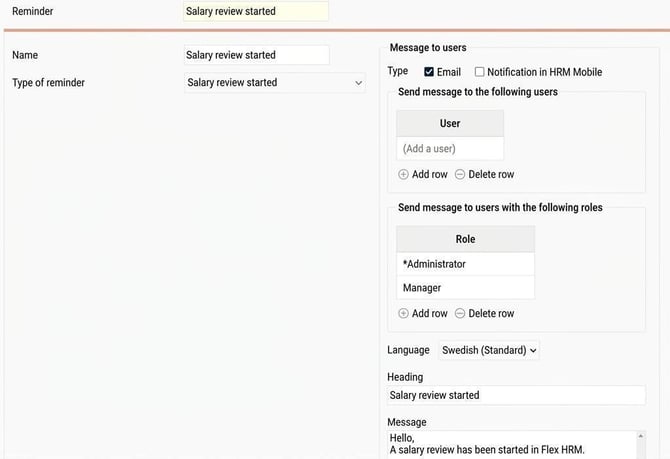
You can create a reminder to notify relevant users that a salary review has started.
Set this in Settings > General > Reminders
Once you have finished the settings as above, you can start preparing the salary review.
Next step - Create salary review
Your complete guide to Salary review

Preparations
Create Salary review
Create pay pots in a salary review
Selectable columns in salary review

Work with salary review
Start Salary review
Work with this year’s salary review
How do I implement this year’s salary review?
Transfer Salary review to Flex Classic Payroll
Employee is included in an active salary review
Can I export this year’s Salary review to an Excel file?
Please note: This article is AI-translated. This means that linguistic errors or misunderstandings may occur.